

Chapter 3: Setting Up Your Data
Who Can See What
In a small team, most people should see most things. Here is how to work out the few limits that matter, and what to do when someone leaves.
Lesson 8 of 8 · 6 min read ·
Permissions control who can see, change, delete and export what in your CRM. They sound like a job for a large company with an IT department. In a team of three, you may barely need them. But a few choices made now can protect your customer list and the people on it.
Start with the right default. In a small business, most people should see most things. A shared memory only works if it is shared. If your office manager can't see a salesperson's deals, she can't answer the phone properly when a customer calls. Lock down the few things that need it and leave the rest open.
What four questions should a permission answer?
People tend to think of permissions as seeing or not seeing. It helps to split that into four separate actions, because each carries a different risk.
| Action | The question | Why it matters |
|---|---|---|
| View | Who can read this? | Protects private details |
| Edit | Who can change this? | Protects accuracy |
| Delete | Who can remove this for good? | Protects against mistakes |
| Export | Who can download the whole list? | Protects your customer list |
Delete and export are the two people forget. Plenty of staff should see every customer, and very few need to delete one. Fewer still need to download all of them at once. If a salesperson leaves for a competitor, the risk comes from the export button, not the view screen.
What three levels of limit can a CRM use?
CRMs usually offer limits by role, by record or by field.
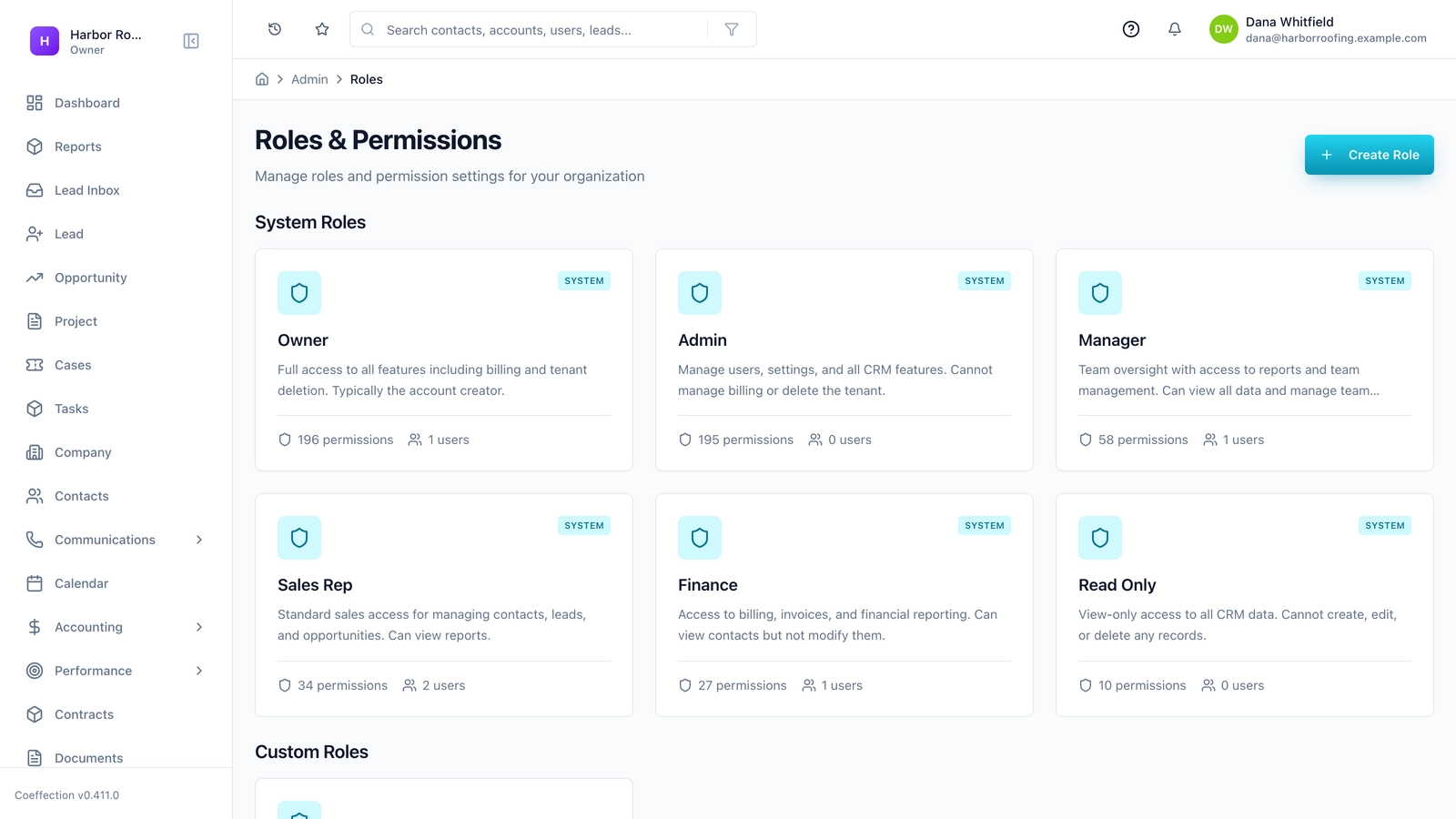
By role. A role is a set of permissions you give to a group of people, so you don't set them person by person. Most small businesses need only three or four: owner or admin, manager, staff, and perhaps bookkeeper.
By record. This decides which records someone can see, such as only their own deals, their team's deals or everything. Sales teams on commission sometimes want this, so one rep can't take another's leads.
By field. This hides one field while leaving the record visible. A rep might see a deal's price but not your cost or margin. It's useful, but it isn't on every plan. Check before you depend on it.
How would a tutoring company set up access?
Here is an invented example. A tutoring company has an owner, an office assistant, a part-time bookkeeper and twelve tutors. Its CRM holds parents, students, subjects, schedules and payments. Some notes are sensitive, because they cover learning difficulties and family circumstances. All of it concerns children.
The owner starts by listing what each person needs in order to do the job.
| Role | Can see | Can change | Delete | Export |
|---|---|---|---|---|
| Owner | Everything | Everything | Yes | Yes |
| Office assistant | All families and schedules | Families, schedules, tasks | No | No |
| Bookkeeper | Billing contacts and invoices | Billing details | No | Yes, invoices only |
| Tutor | Own students only | Own lesson notes | No | No |
Notice that the tutors get the tightest limit. They are part-time, they work from home, and they don't need to see every family to teach their own students. Here, the sensitive data and the size of the group make a limit worth the trouble. For a team of four roofers, the same setup would just get in the way.

Before you set up anything, try this exercise. For each person on your team, write down what they need to read, change and export to do their job. Then give them that, and only that. You can always grant more. Taking access away tends to feel like an accusation.
Once it's set up, test it. Log in as a person in each role, or use a test user if your CRM allows it, and try to do something that role shouldn't do. Try opening a record you expect to be hidden, then look for the export button. Also search for a restricted name, because a limit on the list screen doesn't always cover search results or reports. Ten minutes of this will show you whether the settings do what you think they do.
What belongs in a limit?
Whatever your size, four kinds of information and access deserve careful thought.
- Your costs and margins. Staff may not need them, and they shouldn't reach a customer by accident.
- Sensitive personal details, such as health, family or financial notes. Better still, don't store them unless you must.
- Staff information. Pay, reviews and disciplinary notes don't belong in a CRM at all.
- Settings. Keep admin rights to one or two people, so nobody renames a stage or deletes a field by accident.
Watch out
Privacy laws differ by country and state, and some have special rules about children's data, health details or the right to have data removed. We can't give you legal advice, and this lesson doesn't replace it. If you hold sensitive data, find out which rules apply to you, and ask a professional if you aren't sure.
When someone leaves
The moment someone leaves is when permissions become real. Write the steps down now, while nobody is leaving.
- Turn off their login the moment they finish, or before if it's a difficult exit.
- Remove their access to connected tools and any shared passwords.
- Reassign their open deals, tasks and contacts to a named person.
- Check whether their email connection stops, and what happens to synced history.
- Check whether you keep paying for the seat, and remove it if you do.
Give each person their own login, with their own name on it. A shared login might save a seat fee, but you can't turn one person off, and you can't tell who changed what.
Look at the log
Many CRMs keep an audit log, a record of who changed or exported what, and when. You won't read it often, but it matters on the day a customer's record has changed and nobody knows why. Check whether your plan includes it, and how long it keeps records. Role-based permissions and logs often sit on higher tiers, so add them to your must-have list if you need them. Coeffection includes role-based access control, and many other CRMs offer something similar, so compare what each does on the plan you would really buy.
Review who has access twice a year. It takes ten minutes. People change jobs and leave, and old logins are easy to forget.
Key takeaways
- In a small team, default to open, and lock down the few things that need it.
- Treat view, edit, delete and export as four separate decisions.
- Give each role what the job requires, and keep delete, export and admin rights to very few people.
- Write down your leaver steps now, and give everyone their own login.
- Sensitive data and the law may require tighter limits. Check what applies to you.
Common questions
Should most people on a small team be able to see most records?
Usually, yes. A shared memory only works if it is shared, so lock down the few things that need it and leave the rest open.
What do view, edit, delete and export control?
They are four separate actions with different risks. View protects private details, edit protects accuracy, delete protects against mistakes, and export protects your customer list.
What should I do when a staff member leaves?
Turn off their login the moment they finish, or before if the exit is difficult. Remove their access to connected tools, reassign their open deals, tasks and contacts to a named person, and check whether you still pay for their seat.
Keep your place and test yourself
Enroll for free to save your progress, take the chapter quiz, and get a certificate when you pass every chapter. The lessons stay open to everyone either way.