

Chapter 3: Setting Up Your Data
Cleaning and Importing a Spreadsheet
An import moves your mess into a place where it is harder to fix. Here is how to clean first, test with a few rows, and keep a way back.
Lesson 6 of 8 · 7 min read ·
Most people import their spreadsheet on the first day because they want to see their own data in the new system. It's a natural impulse. The trouble is that every typo, duplicate and blank cell comes along with it, and now your new tool feels as messy as the old one. Your team opens it, sees rubbish, and quietly goes back to the spreadsheet.
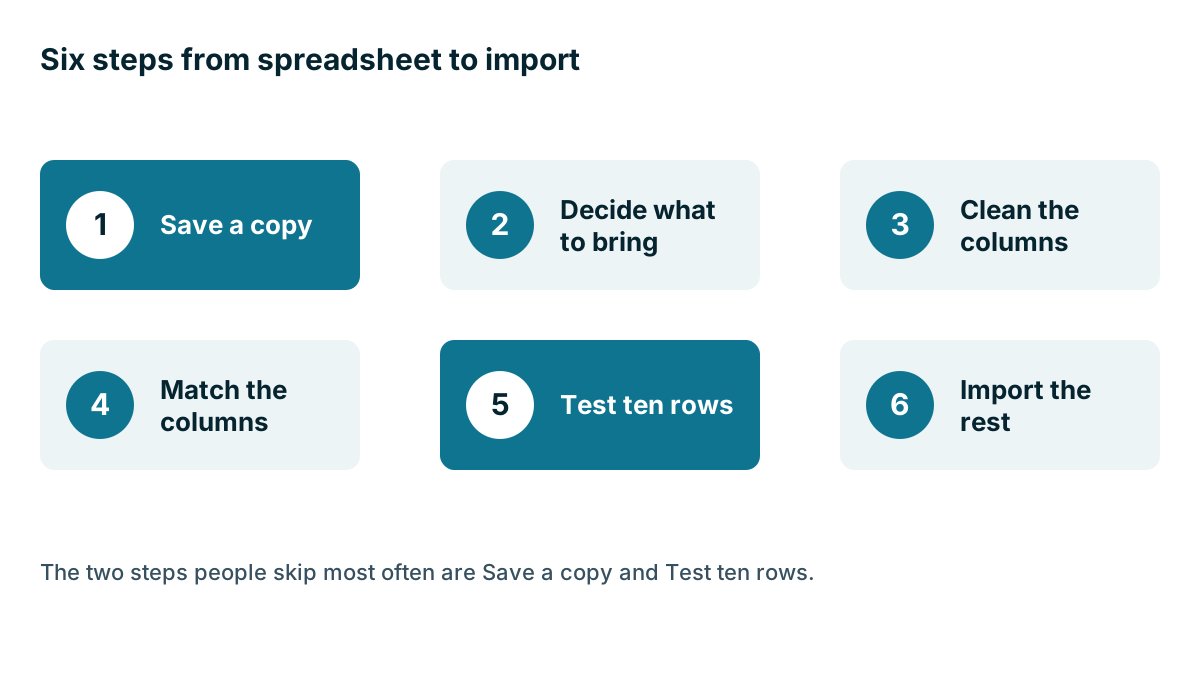
An afternoon of cleaning first usually saves days of fixing later. Here is the order that works.
Step 1: Save a copy
Before you change anything, save the original file somewhere safe and don't edit it. Name it with the date. Work on a copy. If something goes wrong in two weeks, you can look at what the data used to say.
Step 2: Decide what to bring
You don't have to bring everything. Here is an invented example. A picture framer has a spreadsheet of 1,400 rows going back eleven years, built from walk-ins, gallery orders and corporate customers. Plenty of those people have moved on. Many of those businesses have closed.
She sorts it into three groups:
- Bring across: customers who have bought in the last three years, and every open enquiry. That comes to 520 rows.
- Keep in an archive: older customers. The file stays safe in a folder in case she needs it.
- Leave behind: test rows, blank rows, and people who asked not to be contacted.
Pick your own cut-off date. Think about how often customers come back in your trade. A roofer may want ten years of history, because roofs last a long time. A kennel might want twelve months.
One warning. If people have asked you not to contact them, don't simply lose that fact. Keep their addresses on a do-not-contact list, or mark them that way in the import, so nobody adds them again later.
Step 3: Clean the columns
Go through one column at a time. You don't need special software. Sort and filter in the spreadsheet will catch most of this.
- One thing in each cell. Split Jane and Tom Rivera, 555 0142 into a name column and a phone column.
- Names in separate columns. Use first name and last name, in normal capital letters.
- One phone format. Choose one and use it everywhere. Remove extra notes such as ask for Tom.
- One date format. Check whether 03/04 means March or April, and make every row match.
- Consistent lists. Sort the Status column and merge Won, won and WON into one value.
- Valid emails. Sort by email and look for missing @ signs and obvious typos.
- No formulas. Paste values, so totals don't turn into errors.
- Duplicates removed. Sort by email, then by phone, and look for repeats.
Sorting is your best tool. When you sort a column, the odd entries gather at the top and the bottom, where they are easy to see.

Should you split the sheet into one file per record type?
Your spreadsheet has one row per customer, but your CRM keeps contacts, companies and deals apart. Importing is often easiest if you split the sheet into separate files and load them in this order:
- Companies first, because contacts need something to link to.
- Contacts next, with a column holding the exact company name, or an ID.
- Deals last, linked to a contact or company.
The link depends on a match. If a company is Rivera Roofing in one file and Rivera Roofing LLC in the other, the CRM may create a second company or fail to link them. Copy and paste the names rather than retyping them. Check how your CRM does this before you begin, because the steps differ from one product to another.
Do open and closed deals need the same care?
Your open deals deserve the most care, because your team will work on them tomorrow. Give each one a stage from your new pipeline, a value, an owner and a next step with a date. If you can't fill in those four things, ask whether it's really an open deal.
Closed deals need less. You may want the date, the value and whether it was won or lost, so that your reports have some history to compare with. If that history is patchy, you can leave it in the archive and start your reports fresh from the day you go live. A clean start is better than a report built on guesses, and nobody will mind that last year's numbers live in a spreadsheet.
Step 4: Match the columns
During an import, you will be asked which column goes to which field. Create any missing fields before you start. Check any dropdown fields especially closely, because a value that doesn't appear on the list may be rejected, left blank or added as a new option, depending on the product. Find out which one yours does.
Also check what the import does with dates and notes. Old notes in one big cell will usually land as a single block of text. That's fine. You don't have to rebuild history, and you certainly don't have to split ten years of notes into separate activities.
Step 5: Test ten rows
Testing ten rows saves more grief than any other step. Make a small file with ten rows, and include the awkward ones: the customer with two companies, the name with an apostrophe, the row with a missing phone, and the one with a very old date. Import it. Then open each record and look.
- Did the names land in the right fields?
- Are the phone numbers intact, including any leading zeros?
- Do the dates show the right month?
- Is each contact linked to its company?
- Did anything send an email or start a workflow?
That last check matters. Some systems run automations on imported records. Switch any automation off first, or you may email your whole customer list by accident.
Then delete the test rows, fix your file, and run the test again if you changed much.
Watch out
Before you run the full import, find out how to undo one. Some products can reverse an import in a click. Others make you delete records by hand or filter by import date. Knowing this beforehand is much better than finding out afterwards with 3,000 wrong records on screen.
Step 6: Import the rest, then check it
Run the whole file. Compare the number of records created with the number of rows you loaded. If you loaded 520 rows and got 498 records, go and find out where the other 22 went. Most tools produce an error report that says which rows failed and why.
Now take five customers you know well and look them up. Ask someone else to do the same. Your team knows if a record looks wrong much faster than any report will.
Finally, set a date when the old spreadsheet becomes read-only. Tell everyone. If you run the two side by side, people will update one or the other, and within a month neither can be trusted.
Key takeaways
- Save an untouched copy first, and bring across only the records you will use.
- Clean one column at a time, and use sorting to bring the odd entries to the surface.
- Import companies, then contacts, then deals, so the links work.
- Test with ten awkward rows, and turn off any automations before you import.
- Find out how to undo an import before you run it, and set a date to retire the old sheet.
Common questions
Should I import my spreadsheet into a CRM on the first day?
It is better to clean it first. Every typo, duplicate and blank cell comes along with the import, and an afternoon of cleaning usually saves days of fixing later.
How can I test an import without messing up my CRM?
Import a small file of ten awkward rows after you switch off any automation, because some systems email people or start workflows when records arrive. Then delete the test rows and fix your file.
Can you undo a CRM import?
Some products can reverse an import in a click. Others make you delete records by hand or filter by import date, so find out which yours does before you run the full file.
Keep your place and test yourself
Enroll for free to save your progress, take the chapter quiz, and get a certificate when you pass every chapter. The lessons stay open to everyone either way.