

Chapter 11: Moving From Your Old System
The First 30 Days
Going live is the start of the hard part. Here is what to do in weeks one to four, what to resist adding, and when you can finally close the old system.
Lesson 6 of 6 · 6 min read ·
Going live feels like the finish line. It's closer to the starting line. In the first month, people find the gaps, old habits pull them back, and small problems either get fixed or turn into reasons not to use the system. How you handle these 30 days decides whether the move sticks.
Set expectations first. The first few weeks will feel slower. People will take longer on tasks they used to do without thinking. That's normal and it passes, and it helps to say so up front.
How do you track problems after go-live?
Create one shared place where anyone can report a problem. A simple list will do. For each item, note who raised it, what happened, how urgent it is, and who is fixing it.
Then review it daily for the first week, and weekly after that. Sort each item into one of three groups:
- Fix now. Something blocks real work or shows wrong data.
- Fix soon. It's annoying, but people can work around it.
- Later. It's a request for something new. It goes on a separate list and waits.
Tell people what happened to their item. If someone reports a problem and hears nothing, they'll start working around it, usually in a spreadsheet.
A week-by-week plan
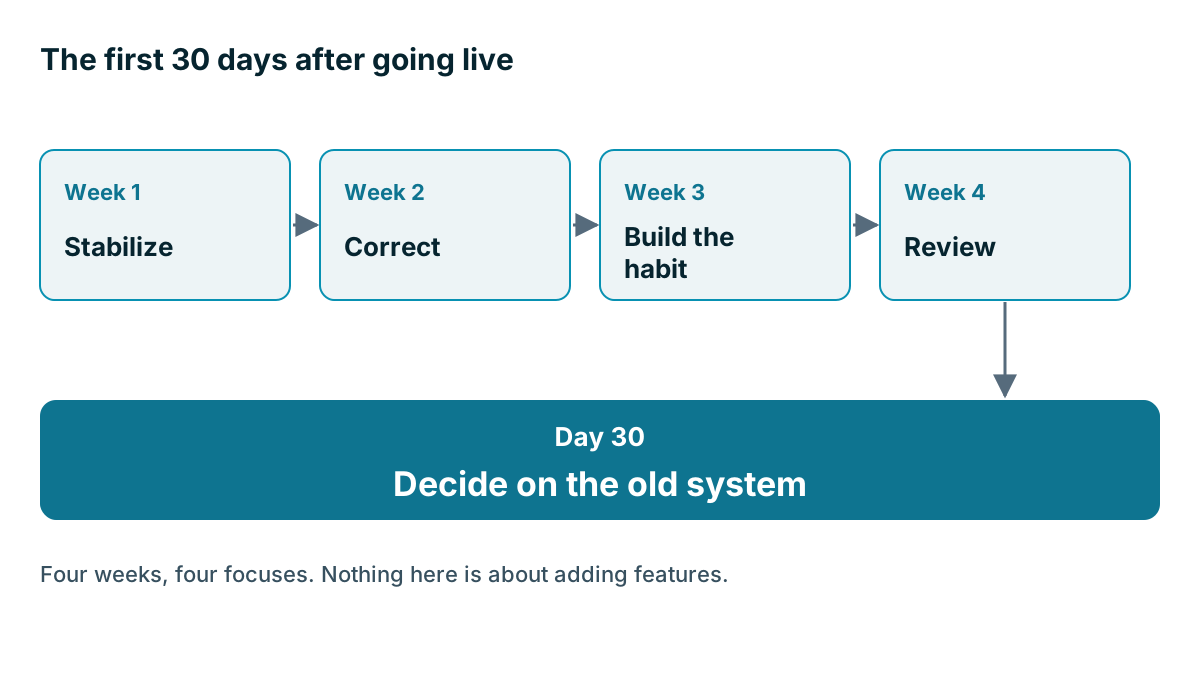
| Period | Focus | What to do |
|---|---|---|
| Week 1 | Stabilize | Daily check-in, fix blockers, keep the go-to person free |
| Week 2 | Correct | Fix data errors, spot-check records, update the cheat sheet |
| Week 3 | Build the habit | Run meetings from the board, start the weekly check |
| Week 4 | Review | Check data health, ask the team, decide on the old system |
Week 1: stabilize
Hold a ten-minute check-in each day. Ask what's blocking people, and what's confusing them. Watch the first enquiries arrive and make sure each one reaches a person. Check your email links, your forms and anything connected to accounting.
Keep your go-to person available. Most questions in the first week are small and quick to answer, and fast help builds confidence.
Week 2: correct
Now look for data problems. No matter how good your test run was, real use will turn up things it missed. Pick a sample of records your team has been using and check them. Search for duplicates created since go-live. Look at any record marked as imported that people say is wrong.
If a fault affects many records, fix it as a batch, and record what you did. If it affects a few, ask whoever finds one to fix it on the spot.
Week 3: build the habit
By now, the team should know their way around. This is when the habits from the last chapter start. Run your meetings from the board. Begin the weekly check of deals with no next step, overdue tasks and stale deals.
This is also when old habits return. Look out for the signs:
- Someone is still keeping a spreadsheet.
- A manager asks for a report outside the system.
- Quotes are going out from the old template.
- People text each other customer details.
Don't scold. Ask what the new system didn't give them. Each private workaround is a clue about something it's failing to do.
Week 4: review
At day 30, sit down with the owner, the move lead and one or two team members. Go through a short review.
- Is every active customer and open deal in the system?
- Do all new enquiries arrive and get answered?
- What share of open deals have a next step with a date?
- Has anyone gone back to the old system? Why?
- What's left on the fix list?
- What did people ask for most on the later list?
- Are the costs what we expected?
Write down the answers. In a year you may forget how this felt, and this page will help when you plan your next change.
Should you add features in the first month?
Once people settle in, you'll see plenty of ideas: new fields, more automations, a clever dashboard. Put them on the later list for now. Nobody knows yet what the team really needs, because the team has barely started. Wait until the system has been stable for a month or so, then choose one or two items that will make the biggest difference. The next chapter looks at how to decide.
The exception is removing things. If a field is confusing people or nobody is using it, take it out right away.
Example
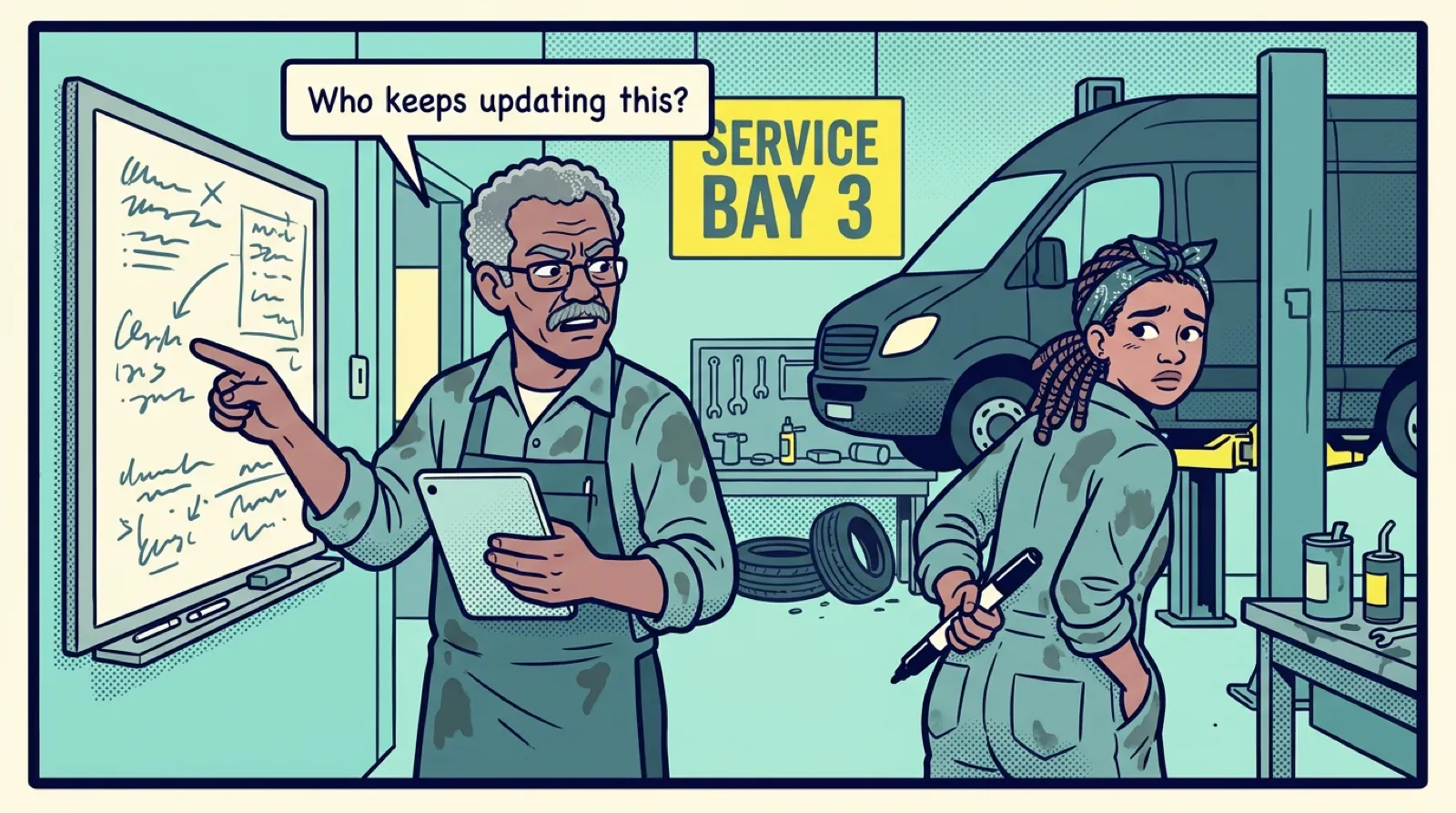
An invented example. An auto repair shop that does fleet servicing for local businesses has seven staff. In week 2, a service writer asks for a custom dashboard. The owner adds it to the later list. In week 3, he notices the same writer is keeping a paper list of fleet vehicles due for service, because no reminder exists for them.
That paper list turns out to be the real need. On day 30 the shop adds one recurring task for each fleet account. The dashboard stays on the later list, and two months later nobody has asked about it.
When can you close the old system?
Don't cancel your old system on day one, and don't keep it forever. While it's available, people will drift back to it. Once it's gone, you lose your fallback. So set a date.
Keep it read-only for at least the first month, and longer if you have a full business cycle to get through, such as a quarter-end or a renewal season. Before you close it:
- Take one last full export, and open it to check it
- Save attachments and files that didn't migrate
- Move the export into your dated archive
- Confirm nothing still feeds into or pulls from the old system
- Note the cancellation date and the notice you must give
- Cancel in writing, and keep the confirmation
- Remove old logins and connected apps
- Check your card statement the next month to be sure billing has stopped
Watch out
Cancel on your own schedule, not the vendor's. Many contracts renew automatically, and the notice deadline can come well before the renewal date. Put the deadline in your calendar on the day you plan the move. And before you close the account, ask how long your data stays reachable and when it gets deleted.
Mark the end
When the old system is closed, say so. Thank the people who did the work, especially your move lead, who probably gave up more than anyone noticed. Tell the team what's changed for the better, with a real example if you have one. A customer's question answered in seconds, or a follow-up that would otherwise have been lost, is worth mentioning.
Then hand things over to normal running. The move is done, and keeping the system healthy is a different job.
Key takeaways
- Expect the first weeks to feel slower, and say so to your team.
- Keep one problem list, reviewed daily in week 1, and sort each item into now, soon or later.
- Treat private spreadsheets as clues about what the new system lacks.
- Hold off on new features for about a month, but remove confusing fields right away.
- Keep the old system read-only for a set time, then take a last export and cancel in writing.
Common questions
What should I do when people keep using a private spreadsheet?
Don't scold them. Ask what the new system didn't give them. Each private workaround is a clue about something the system is failing to do.
Should I cancel my old CRM as soon as the new one is live?
No. Don't cancel on day one. Keep the old system read-only for at least the first month, and longer if you have a full business cycle to get through, such as a quarter-end or renewal season.
What should I check before cancelling the old CRM?
Take one last full export and open it to check it. Save files that didn't migrate, confirm nothing still feeds the old system, and note the notice you must give before you cancel in writing.
Keep your place and test yourself
Enroll for free to save your progress, take the chapter quiz, and get a certificate when you pass every chapter. The lessons stay open to everyone either way.