

Chapter 11: Moving From Your Old System
Exporting and Mapping Your Data
Get your data out, keep a clean original, and write a simple sheet that shows where every column goes. This is the unglamorous step that makes the rest work.
Lesson 3 of 6 · 7 min read ·
This is the most detailed lesson in the chapter, and also the one that pays off most. A good export and a clear mapping sheet will prevent most of the pain people tell stories about.
Mapping sounds technical, but it's only a list that says: this column in the old system goes into that field in the new one. You can do it in a spreadsheet, and you don't need any technical training.
Step 1: export
Export each type of record into its own file. Most systems give you CSV, a plain table of rows and columns that nearly any tool can read. Typically you'll have separate files for companies, contacts, deals and notes or activities.
Export more than you think you need. It's far easier to ignore a column than to go back for one. Check that the export includes the record ID, a unique code that identifies each row. IDs are what let you connect a note to a contact and a contact to a company. Without them, you may end up with a pile of notes and no way to tell whose they are.
If you're coming from a spreadsheet, you may have no IDs. Add a column and number the rows before you do anything else.
Watch out
Save the original export and never edit it. Make a copy and work on the copy. Spreadsheet programs can quietly change your data as soon as you open and save a file. They drop the leading zero from ZIP codes and phone numbers, turn long numbers into forms like 1.5E+11, and turn some text into dates. Check these columns first, and when you open a CSV, use the import option that lets you mark such columns as text.

Step 2: clean the copy
Do only the cleaning that the next step needs. It's easy to lose a week here.
- Remove the records you decided to leave behind
- Merge obvious duplicates, using email or phone number to find them
- Split full names into first and last name if the new system needs that
- Use one format for dates, and make sure day and month aren't swapped
- Use one format for phone numbers and states
- Tidy the values in status and category columns
- Save with UTF-8 text encoding so names with accents survive
The date point is worth checking twice. Does 03/04 mean March 4 or April 3? If your old system and new system disagree, every date up to the 12th of the month could silently change while still looking fine.
Step 3: build the mapping sheet
Make one row for each old column. Fill in where it goes and what needs to change on the way. Here's an invented example from a commercial refrigeration repair firm moving from a spreadsheet.
| Old column | New field | Change needed |
|---|---|---|
| Client | Company name | None |
| Contact | First name and Last name | Split into two columns |
| Tel | Phone | Use one format |
| Remove blanks and bad addresses | ||
| Site | Service address | Split into street, city, state, ZIP |
| Status | Pipeline stage | Convert the values, see below |
| Amount | Deal value | Remove currency signs and commas |
| Rep | Deal owner | Match to a user in the new system |
| Fax | Leave behind | None |
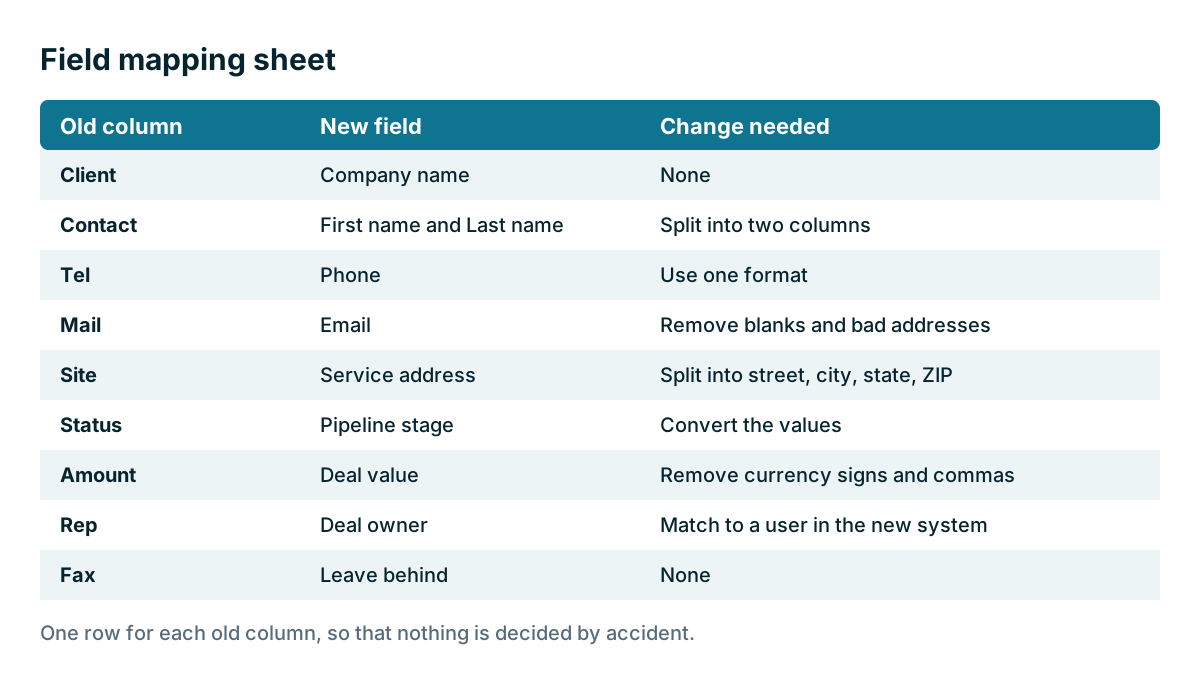
Every old column needs a decision, even if the decision is to leave it behind. If a column has no home but you still need it, create a custom field for it, or add it to a note. Create custom fields sparingly. Each one has to earn its place, and now is a good time to be strict.
Step 4: map the values too
Columns are only half the job. The values inside them often need mapping too. Status is the usual problem, because old systems tend to collect a dozen versions of the same idea.
| Old status values | New stage |
|---|---|
| New, new lead, NEW | New enquiry |
| Quoted, sent, waiting | Quote sent |
| Booked, won, paid | Won |
| Lost, dead, no, cancelled | Lost |
Do the same for lead source, owner names and any category. Use a filter or a pivot table in your spreadsheet to list every distinct value in the column. You will find surprises, and it's better to find them now than after the import.
Step 5: work out the order
Records depend on each other. A contact needs its company, and a deal needs its contact and its owner. So import in order, from the things that stand alone to the things that depend on them.
- Users. Set up your team first, so owners can be assigned.
- Companies. These stand on their own.
- Contacts. Each one links to a company.
- Deals. Each one links to a contact or company and an owner.
- Notes and activities. Each one links to whichever record it belongs to.
- Files. Attachments often come last, and may need a separate process.
Write this order at the bottom of your mapping sheet. If your new CRM's import tool works differently, follow its instructions. Importers differ, including in how they link records, so read the help pages before you start. Ask whether the importer matches on an ID, an email address or a company name. Matching on a name will fail on any small spelling difference.
How do you track where imported records came from?
Add an import tag or a source field to every record, such as Imported May. This helps far more than it sounds. If something goes wrong, you can find and fix or remove everything in that batch. Later, you can tell imported records from ones your team created. Consider also keeping the old ID in a custom field for a few months, so you can trace any record back to its original row.
Tip
Ask someone who knows the customers to read your mapping sheet, not just the person who built it. They'll spot things like a column everyone calls Status that really means something else.
Key takeaways
- Export each record type to its own file, and make sure record IDs come with it.
- Never edit the original. Check for lost zeros, broken numbers and swapped dates.
- Build a mapping sheet with a decision for every column, including the ones you leave behind.
- Map the values inside columns too, especially status and lead source.
- Import in order, from users and companies through to notes and files, and tag each batch.
Common questions
What is a mapping sheet for a CRM import?
A mapping sheet is a list with one row for each old column. It shows where that column goes in the new system and what needs to change on the way. You can build it in a spreadsheet.
Why do record IDs matter when exporting data?
An ID is a unique code that identifies each row. IDs let you connect a note to a contact and a contact to a company. Without them, you may have notes and no way to tell whose they are.
Why does a spreadsheet break phone numbers and ZIP codes?
Spreadsheet programs can quietly change your data when you open and save a file. They can drop the leading zero from ZIP codes and phone numbers, turn long numbers into forms like 1.5E+11, and turn some text into dates.
Keep your place and test yourself
Enroll for free to save your progress, take the chapter quiz, and get a certificate when you pass every chapter. The lessons stay open to everyone either way.