

Chapter 11: Moving From Your Old System
Cutover Day
Cutover day is the moment the new system becomes the truth. Here is a simple schedule, how to freeze the old system, and what to do if it goes wrong.
Lesson 5 of 6 · 6 min read ·
Cutover is the moment one system stops being the record and another one starts. If you've done the planning and the test run, this should be a dull day. Dull is what you want.
Two systems must never both be live for long. If some people update the old one while others use the new one, you can't tell which is right, and you'll spend weeks working it out. The goal of the day is one clean switch.
When is the best time to switch?
For most businesses, the best time is the end of a quiet day before the weekend or a slow period. That gives you time to finish, check the results and fix anything before the team starts. If your business runs on weekends, as many trades and hospitality businesses do, pick your own quietest stretch.
Tell people the plan a week ahead, then again the day before. Make sure they know exactly when the old system stops taking changes.
What does a cutover schedule look like?
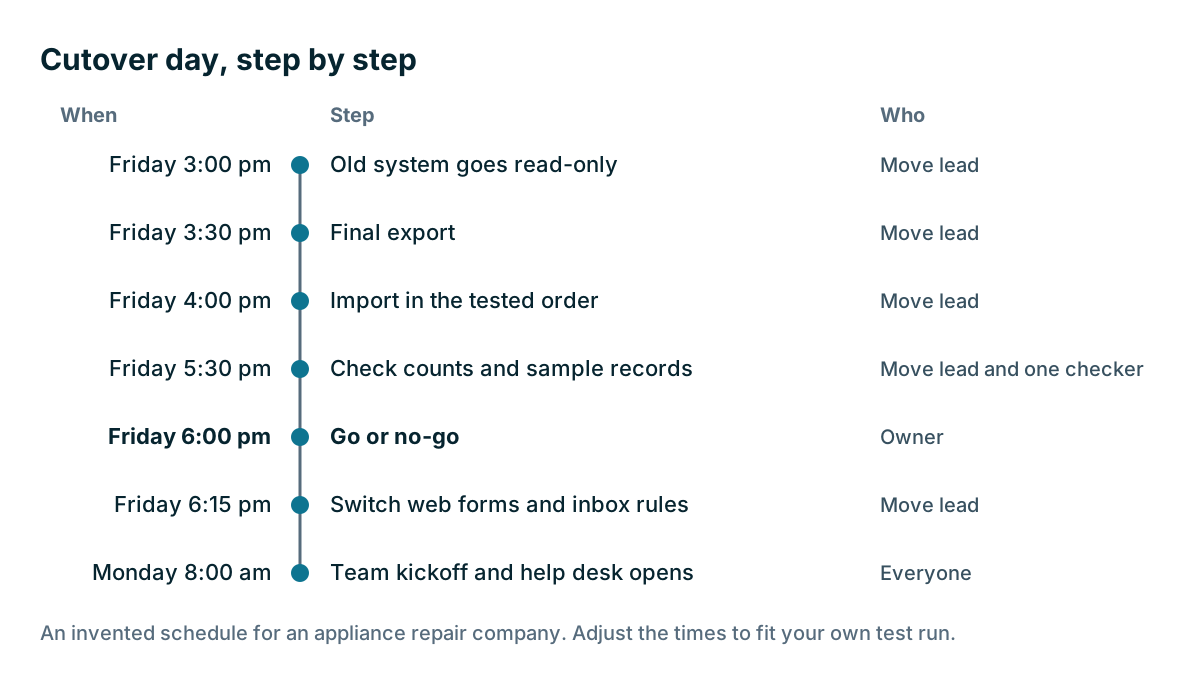
An appliance repair company with 15 staff, moving on a Friday, might follow the invented schedule below. Adjust the times to fit what you learned from your test run.
| When | Step | Who |
|---|---|---|
| Friday 3:00 pm | Old system goes read-only | Move lead |
| Friday 3:30 pm | Final export | Move lead |
| Friday 4:00 pm | Import in the tested order | Move lead |
| Friday 5:30 pm | Check counts and sample records | Move lead and one checker |
| Friday 6:00 pm | Go or no-go | Owner |
| Friday 6:15 pm | Switch web forms and inbox rules | Move lead |
| Monday 8:00 am | Team kickoff and help desk opens | Everyone |
How do you freeze the old system?
Make the old system read-only at a set time. If it offers read-only access, change everyone's permissions. If it's a spreadsheet, lock it, move it, or save it under a name such as OLD do not edit, and remove people's edit rights.
Anything that happens after the freeze goes on a paper list or a shared note, to be entered into the new system once it's live. That small list prevents an argument about what was in which system.
Then do your final export, and save it as untouched originals along with your other files. Name it with the date.
Import and check
Run the import in the same order you tested, using the same mapping and same steps. This is no time for last-minute improvements. A change that wasn't tested is a risk, however small it looks.
Then run the same checks from your go or no-go list: counts, money totals, links, ten sample records and opt-outs. Have someone other than the person who ran the import do the spot check. Fresh eyes help, especially late on a Friday.
What happens at go or no-go?
If the import passes the checks, say so clearly. Tell the team that the new system is live and the old one is closed.
If it doesn't pass, you need a plan you made in advance. Keep this simple.
Watch out
Decide your fallback before the day begins. If the final check fails and you can't fix it quickly, unfreeze the old system, tell the team, and try again another day. That isn't a disaster. Your old system still works, and you've lost a few hours. The real disaster is going live on data you know is wrong because everyone is tired and wants to go home.
What else needs to switch to the new system?
Customer data doesn't only arrive by people typing it in. Find every path that brings information into the old system and point it at the new one.
- Website contact and quote forms
- Shared inbox rules or forwarding
- Phone system links and call logging
- Booking tools or online scheduling
- Links to accounting software
- Newsletter sign-up forms
- Bookmarks on staff computers and phones
- Automated reminders from the old system
Then send a test through each one. Fill in your own web form, and watch the enquiry arrive. A form that quietly sends leads to a closed system is one of the most costly mistakes in a move, as nobody may notice for days.
Turn off automations in the old system too. Old systems can go on sending reminders or marketing emails to customers long after you've stopped looking at them.
What should the first morning look like?
Plan the first working day as carefully as the import. Start with a short team kickoff. Say the system is live, say who to ask for help, and show where to log problems. Have your go-to person free that day, away from their normal work.
Make sure every person can log in before they need to. Password resets and invitations that got lost in a spam folder will eat your first hour otherwise. Ask everyone to do one real thing right away, like finding a customer they're seeing that day.

Example
An invented example. The appliance repair company's kickoff takes ten minutes in the yard before the vans leave. The owner says the old sheet is closed, and the office manager is on help duty all week. Each technician opens the first customer on their list. Two can't log in, and they're sorted out before they leave. By mid-morning, the web form has delivered its first real enquiry, and the owner has seen it arrive.
Should you move one team at a time?
A single switch suits most small businesses. Some larger teams move one team or branch at a time. That can reduce risk, but it also means two systems run side by side for longer. If you do this, draw a clear line: each customer lives in exactly one system at a time, and everyone knows which. For a team of a few people, a phased move usually adds more trouble than it saves.
Key takeaways
- Two live systems create confusion. Aim for one clean switch at a quiet time.
- Make the old system read-only, then do the final export.
- Run the tested import, unchanged, and check it with a second person.
- Decide the go or no-go rule and your fallback before the day begins.
- Move every form, inbox rule and connection, and test each one.
Common questions
What time is best to switch to a new CRM?
For most businesses, the end of a quiet day before the weekend or a slow period. If your business runs on weekends, pick your own quietest stretch.
What if the import fails the final check on cutover day?
Unfreeze the old system, tell the team and try again another day. Decide this fallback before the day begins. Your old system still works, so you have only lost a few hours.
Why should I turn off automations in the old system?
Old systems can keep sending reminders or marketing emails to customers long after you stop looking at them. Turn those automations off as part of the switch.
Keep your place and test yourself
Enroll for free to save your progress, take the chapter quiz, and get a certificate when you pass every chapter. The lessons stay open to everyone either way.