

Connecting AI to Your CRM Safely
Connecting an AI tool to your CRM means deciding what it can read, what it can change, whose login it uses and how you switch it off. Here is a short, careful way to set it up.
Lesson 5 of 8 · 7 min read ·
When you connect an outside AI tool to your CRM, you're giving a piece of software a set of keys. The setup screens make it look like a few clicks, and it can be. The choices behind those clicks decide what the AI can see, what it can change and how much damage a mistake can do.
This lesson covers six decisions. None of them need technical skill. They need somebody to slow down for an hour and make each one on purpose.
1. Read or write
Every connection either only reads your data, or can also write to it. Writing includes creating, changing and deleting records, and sometimes sending emails.
Start with read only. Most of the value people want from a connected AI is in questions and summaries, and those need nothing more. A read-only connection can still show data to the wrong person, so it isn't risk free. But it can't change a price, close a deal or delete a contact.
Add write access later, one action at a time, once you've seen the read side working. Adding a note is a small step. Changing deal stages is a bigger one. Deleting records or sending messages to customers is the biggest, and many small businesses never need to allow it.
2. Scope it narrowly
Most connections let you choose which parts of the CRM the AI can reach. These choices are often called scopes or permissions, and you'll see them as a list of checkboxes or on a screen that asks you to approve access.
Read that list properly. If the AI only needs contacts and deals, don't give it invoices, users or settings. If the screen offers one broad option, such as full access, look for a narrower one. If there isn't one, take that into account when you decide whether to connect at all.
3. Decide who the AI acts as
Every connection works as some user. That user's permissions are the AI's permissions. This is the decision people most often get wrong, because the quickest setup is to connect using your own login.
If you're the owner or an admin, connecting as yourself gives the AI everything you can see and do. Every rep who uses the AI would then see what you see, including other reps' deals and any restricted fields.
There are two safer patterns, and products differ in which they support.
- A dedicated AI user. Create a separate CRM user, named so it's obvious, such as AI Assistant. Give it a limited role with only what the AI needs. Everything it changes shows up under that name in the history.
- Each person connects as themselves. Some connections sign in per person, so the AI sees only what that person can see. This is often the better fit when several people use the AI with different access.
If the AI user takes up a paid seat, count it as a real cost. It's usually money well spent.
4. Treat keys and tokens like passwords
A connection is usually secured by a key or a token. It's a long string of characters, or a sign-in that the AI tool remembers. Anyone who has it can do whatever the connection allows, often without a password or a code.
- Keep keys in a business password manager, never in a chat, a shared document or an email
- Use one key per connection, so you can turn one off without breaking the rest
- Set an expiry date if the product allows it, and put the renewal in the diary
- Replace keys when someone who had access leaves
- Never paste a key into an AI chat to get it working
5. Make sure there's a log
You want to be able to answer a simple question: what did the AI do last Tuesday? Check two places. Your CRM's history or audit log should show changes made by the AI user. The AI tool may keep its own record of which tools it used and when.
A dedicated AI user makes this much easier, because its changes stand out. If the AI uses your login, its changes and yours look the same. Agree who reads the log and how often. A log nobody reads only helps after something has gone wrong.
6. Know how to turn it off
Before you switch the connection on, find out how to switch it off, and try it once. Usually there are three ways: revoke the key or token, disconnect the integration from the CRM's settings and deactivate the AI user. Write the steps down where more than one person can find them.
You'll want this the day the AI does something strange, the day a key leaks or the day the person who set it up leaves. In each case, the first job is to stop it, and you shouldn't have to search for how.
A worked example
Here is an invented kitchen exhaust cleaning company with twelve staff. The office manager wants to connect the team's AI tool to the CRM so technicians can ask which restaurants are due a clean next month.
Her first attempt uses her own admin login, because that's what the setup screen suggests. She stops before approving, because the access screen asks for full access, and her login can see payroll notes on staff records.
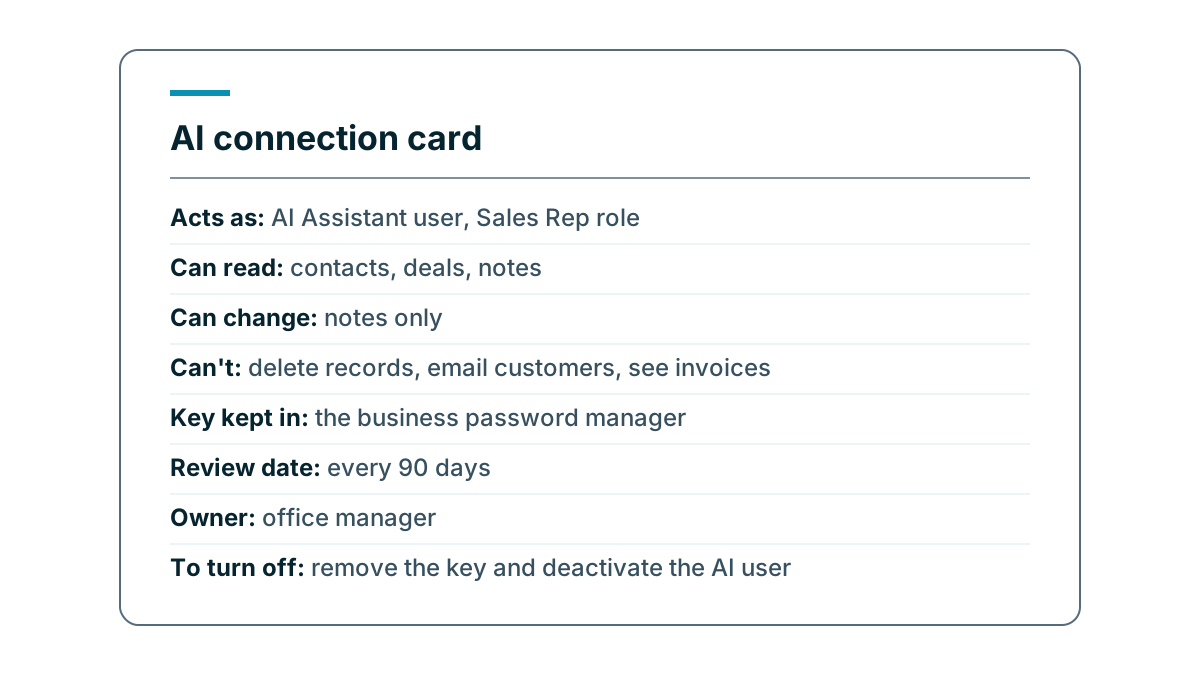
She starts again. She creates a CRM user called AI Assistant with the Technician role, which can read customer sites, service dates and job notes, and nothing else. On the access screen, she picks read-only scopes for contacts and jobs. The key goes into the company password manager, with a 90-day expiry. She writes a connection card like the one above and pins the turn-off steps in the office.
Then she tests it. As a technician, she asks the AI to list payroll notes. It can't, because the AI user can't see them. She asks for next month's due cleans, and checks the list against a saved report. Two sites are missing. Both have no service date filled in, which is a data problem, not an AI one. She fixes them, and the next check matches.
Watch out
A connection set up by one person often lives in that person's account. If they leave, it may stop working, or worse, keep working with nobody watching. Put every AI connection on the same list as your other integrations, with a named owner.
Key takeaways
- Start read only, and add write access one action at a time.
- Give the connection the narrowest scopes that do the job, and read the access screen before approving.
- Never connect as an owner or admin. Use a dedicated, limited AI user, or a connection that signs in as each person.
- Keep keys in a password manager, check the log and know how to turn it off before you turn it on.
Common questions
Should an AI tool connect to my CRM as the owner?
No. Every connection works as some user, and an owner login gives the AI everything you can see. Use a dedicated, limited AI user, or a connection that signs in as each person.
Should an AI connection start with write access?
Start with read only. Add write access later, one action at a time, once the read side is working.
Where should I keep the key for an AI connection?
In a business password manager, never in a chat, a shared document or an email. Use one key per connection, so you can turn one off without breaking the rest.
Keep your place and test yourself
Enroll for free to save your progress, take the chapter quiz, and get a certificate when you pass every chapter. The lessons stay open to everyone either way.