

Integrations to Check
A logo on an integrations page doesn't tell you what actually connects. Here is what to check, and the questions that expose a weak connection.
Lesson 4 of 6 · 6 min read ·
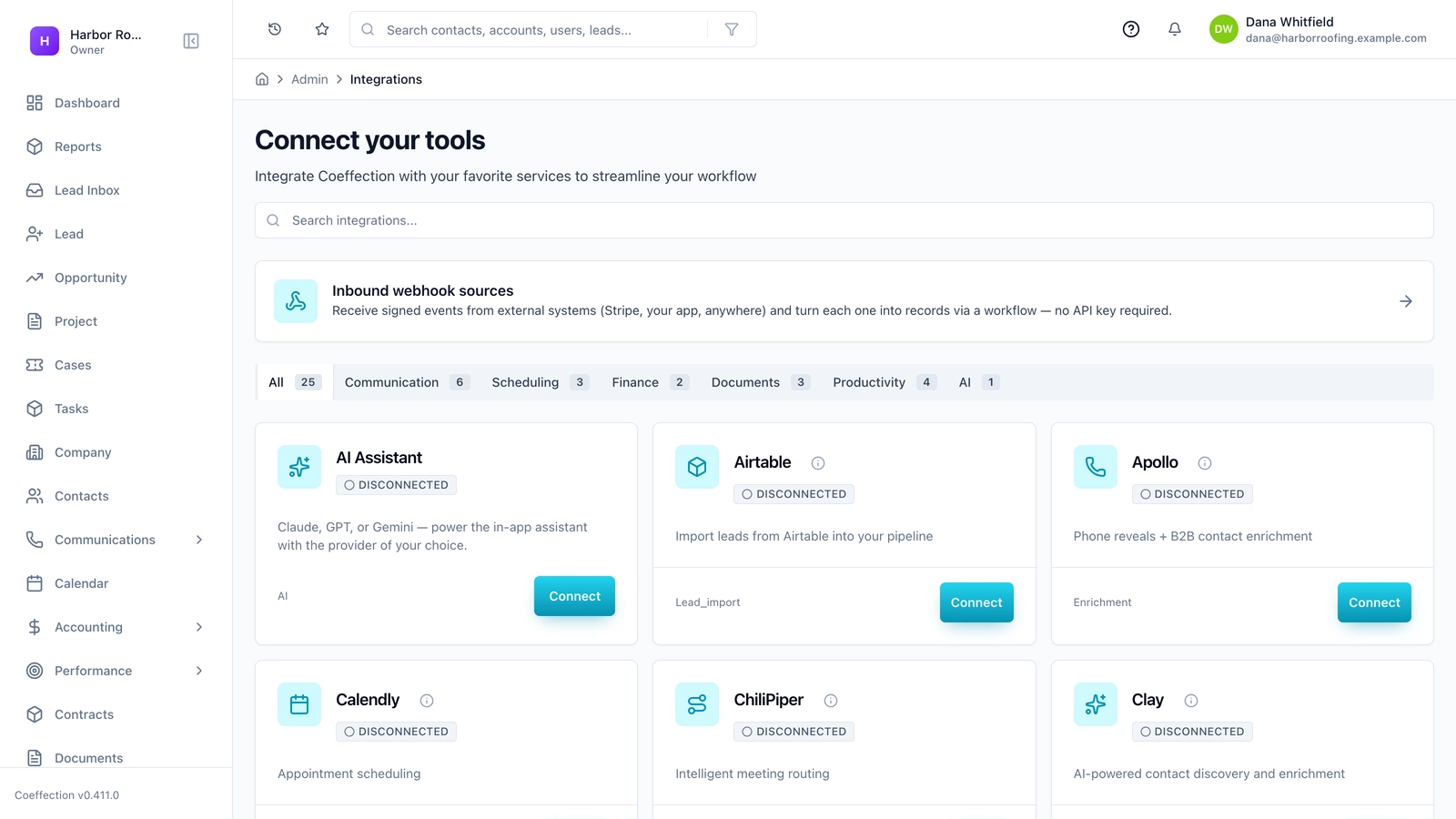
An integration is a link between your CRM and another tool, so information moves between them without someone retyping it. Done well, it removes a lot of dull work. The trouble is that integrations pages are mostly logos, and a logo tells you almost nothing about what the connection does.
Start with your own list
Go back to the tools you listed on your process page. Most small businesses need to check these, and we suggest you do so in this order.
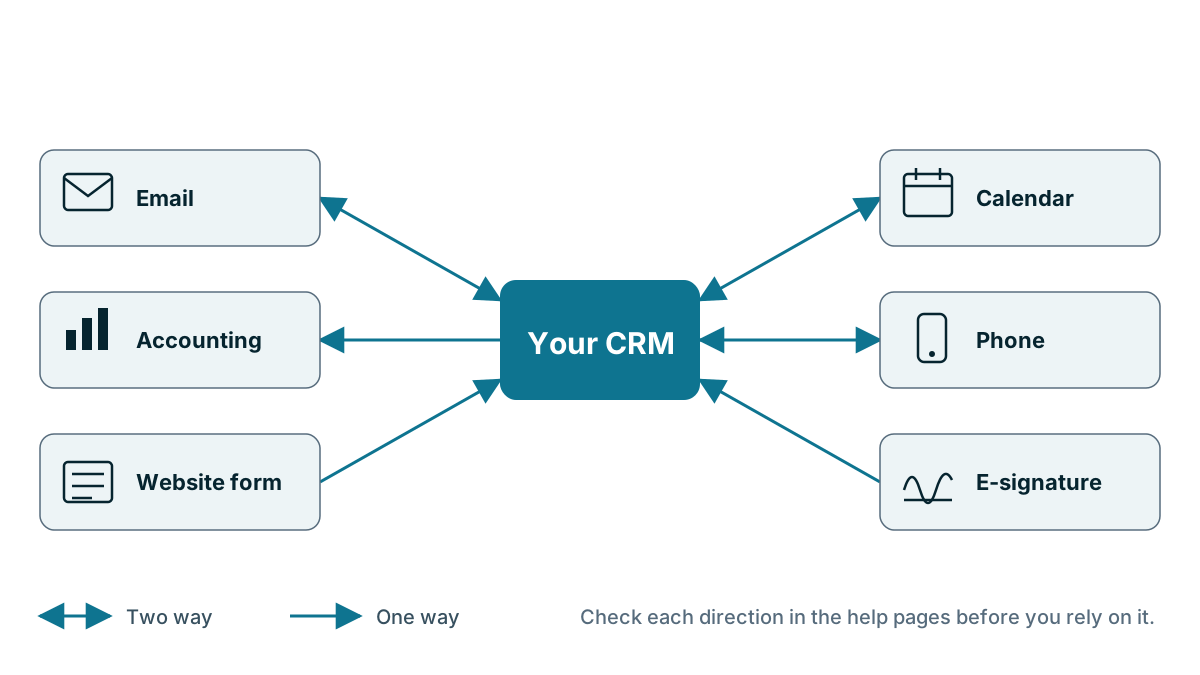
1. Email and calendar. This comes first because it is where your customer conversations already happen. If your CRM doesn't work closely with your email, people have to copy things across by hand, and they will soon stop.
2. Accounting software. You want customer details and invoices to match without retyping. This matters most if you quote before you bill.
3. Your website forms. Enquiries should land in the CRM by themselves, or you will have a new place to forget them.
4. Phone and text messages. If your customers call or text more than they email, the phone history needs a home too.
5. E-signature, if you sign contracts or quotes. A signed document should find its way back to the deal.
6. Anything specific to your trade. A job scheduling app, a booking system, a shop or an order system.
Only list what you use today, or will definitely use this year. Each integration should link to a step on your process page.
What does a logo not tell you?
For each integration on your must-have list, find answers to these. The vendor's help documents are a better source than its marketing pages, because help pages have to describe what really happens.
- What moves? Contacts only? Invoices too? Payment status? Attachments?
- In which direction? One way, or both ways?
- When? Instantly, every few minutes, overnight, or only when someone clicks?
- What happens when records conflict? If two systems disagree, which one wins?
- Who built it? The CRM vendor, the other company, or a third party?
- What does it cost? Is it included, or a paid add-on or a higher tier?
- Does it work on your version? A connector might support one edition of a tool and not another.
The direction question catches many people out. A one-way sync from CRM to accounting means a change made in your accounting software won't come back to the CRM. That may be fine, but you need to know.
Example
An invented example. A bakery wholesaler wants to see which cafes have overdue invoices before the rep calls. The CRM's page lists a connector for their accounting software, so they assume it's covered. Reading the help page, they find that it only sends new customers from the CRM to accounting. Nothing comes back, so the rep would still have to check the accounting software by hand. For them, that is not the integration they needed. Their must-have was written as a job: show overdue invoices on the customer record. The logo said yes, but the job said no.
What are the three kinds of connection?
Knowing the type tells you who to call when something breaks.
| Type | How it works | Good | Watch for |
|---|---|---|---|
| Native | Built into the CRM | Usually simple to set up, supported by the vendor | May be shallow. Read what it really syncs. |
| Third-party app | A connector built by someone else | Can fill real gaps | Separate support, possible extra fee |
| Automation tool | A service like Zapier or Make links the two | Flexible and often quick to set up | Usage fees, and someone has to fix it when it breaks |
There is also the API, a way for software to talk to the CRM directly. If you have a developer, a good API means almost anything is possible. If you don't, an API on its own doesn't solve anything for you. Don't accept a vendor's answer that you can do that with our API unless you've got someone to do the work, and a budget for it.
Test it, then test what happens when it fails
A claim on a page isn't proof. During your trial, which we cover in the next lesson, connect the tools that matter and run real data through them:
- Create a test customer in the CRM and check whether it appears in your accounting software.
- Send and receive a real email and see if it lands on the right record.
- Fill in your own website form and time how long the lead takes to appear.
- Change something on one side and see what happens on the other.
- Use a test record with an odd name, a second email address, or a missing phone number.
Then consider the failure case. If a sync breaks, how would you know? Does anyone get an alert, or would you find out weeks later that nothing has been coming through?
Watch out
Be careful with live financial data. Test on a sandbox or a throwaway company if your accounting software offers one. If it doesn't, use a clearly marked test customer. A wrong sync setting can create duplicates in your books, and those are slow to clean up.

Why keep the list short?
Every connection is one more thing that can break, and one more thing to pay for. A two-person agency with email, calendar and a simple accounting link may need nothing else, ever. If you are building a chain of five automations in your first month, you are probably automating a process you haven't settled yet. Run it by hand for a few weeks first, and automate what stays the same.
Key takeaways
- Check email and calendar first, then accounting, website forms and phone, in that order for most small businesses.
- A logo isn't enough. Find out what moves, in which direction, how often, and at what cost.
- Read the help documents, which describe what really happens, and write your must-have as a job.
- Test real data during the trial, and find out how you would know if a sync stopped working.
Common questions
What does a CRM integration actually do?
It links your CRM to another tool so information moves between them without anyone retyping it. A logo on an integrations page says little about what moves, in which direction or how often.
Which integration should a small business check first?
Email and calendar, because that is where your customer conversations already happen. Accounting software and website forms come next for most small businesses.
How can I tell if a CRM integration will work for me?
Read the vendor's help documents, since they have to describe what really happens. Then test real data during the trial and check what happens when a sync breaks.
Keep your place and test yourself
Enroll for free to save your progress, take the chapter quiz, and get a certificate when you pass every chapter. The lessons stay open to everyone either way.