
Chapter 10: Getting Your Team to Use It
Mobile and Field Staff
People who work from trucks, job sites and customers' homes won't log anything at 6 pm. Here is how to design their part of the CRM around a phone, a bad signal and 60 seconds.
Lesson 5 of 6 · 6 min read ·
A desk worker can keep a CRM open all day. A tree surgeon can't. Someone working from a truck has dirty hands, a poor signal and a next job to get to. By the time they're home, the details have gone, and nobody wants to do paperwork at 6 pm.
If you have people in the field, the question is what they need from the CRM on their phone, and what the smallest useful thing is that you need from them. Answer those two well and you can leave out the rest.
What do field staff need from a CRM?
Most field work comes down to three moments.
Before they arrive. What's the address, who do I ask for, and what do I need to know? Gate codes, parking, a difficult dog, last visit's notes. This is the reward, and it should be easy to reach.
While they're there. Photos, measurements and a quick note. On many jobs, a photo says more than a paragraph, so it matters that photos land on the right record and not only on someone's camera roll.
After they leave. What happened and what's next? This is the part that gets skipped, and it's where most follow-ups are lost.
Notice how little that is. A field worker usually doesn't need dashboards, reports or pipeline setup. When you test a mobile app, test these three moments and ignore everything else.
How do you keep a visit log to about 60 seconds?
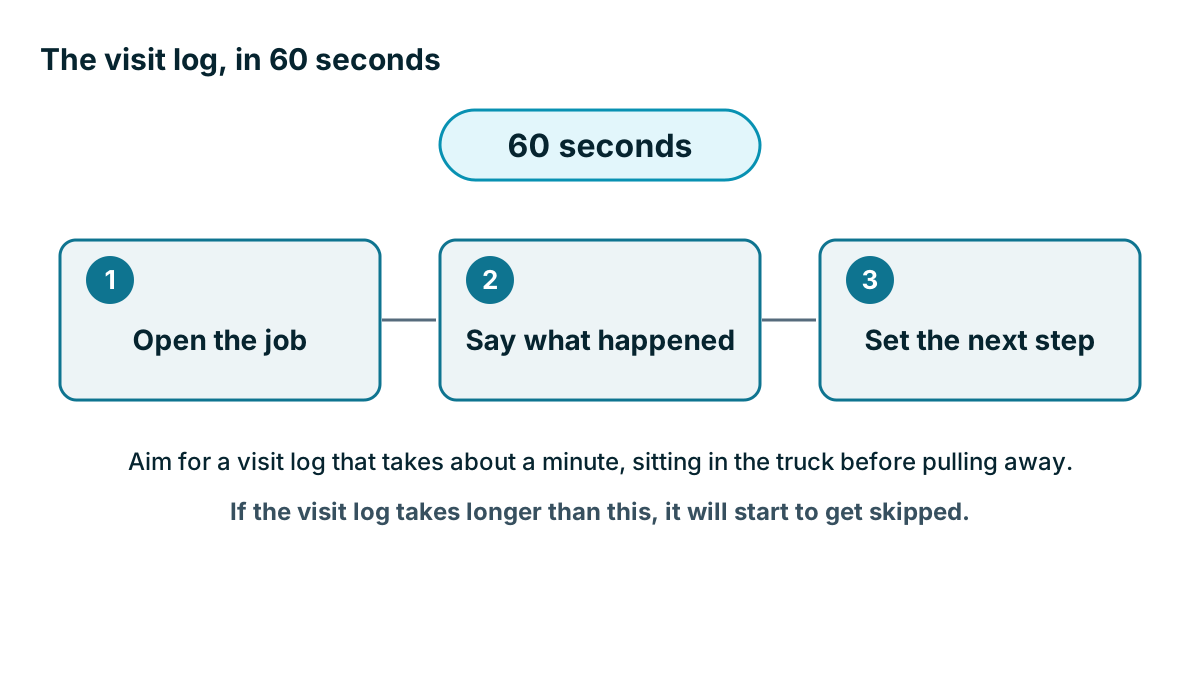
Aim for a visit log that takes about a minute, sitting in the truck before pulling away. Three steps will do it.
- Open the job. One tap from today's list.
- Say what happened. One line, typed or dictated.
- Set the next step. What happens next, and when.
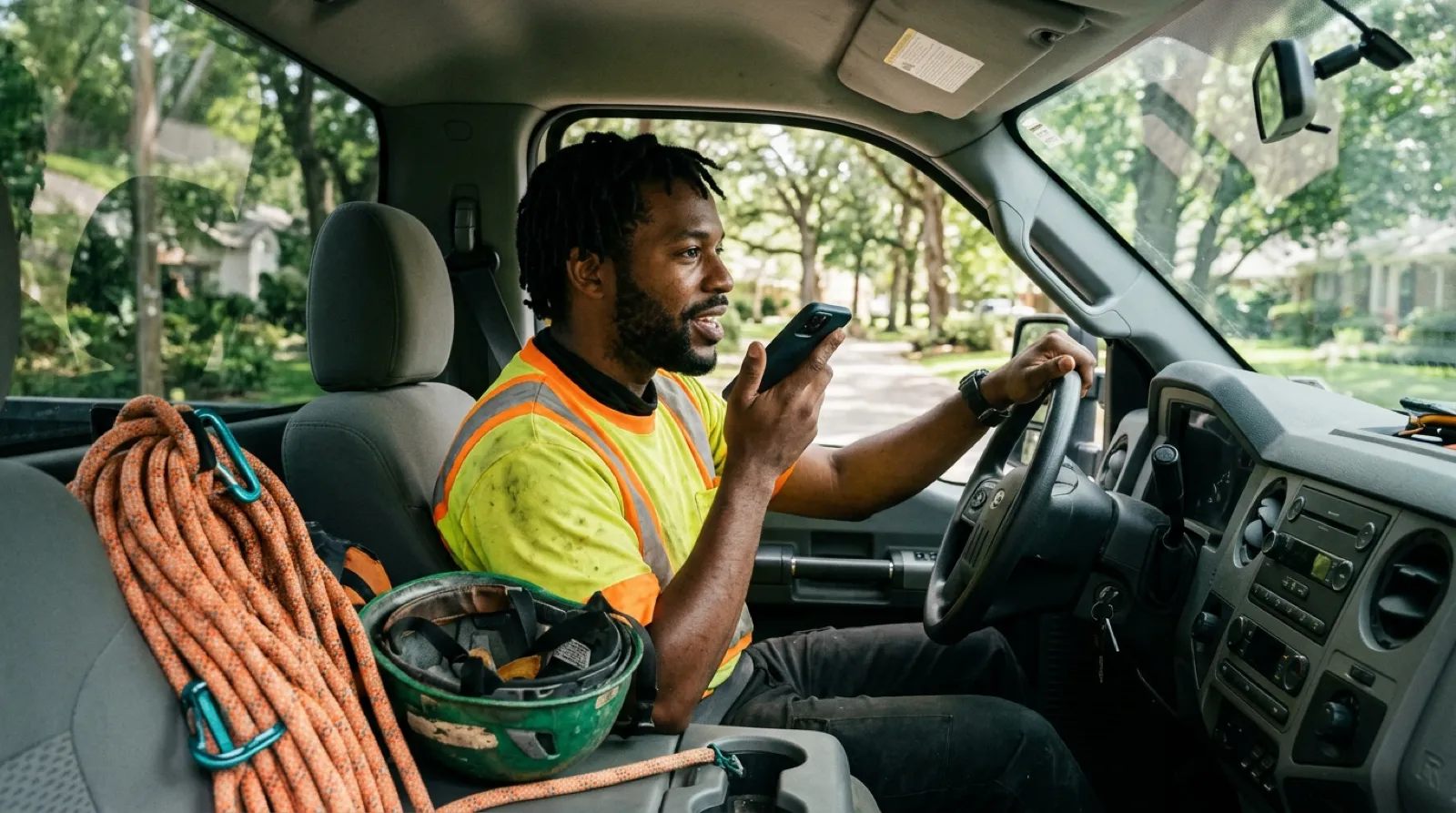
Dictation helps a great deal here. Most phones can turn speech into text in any text box, without any CRM feature at all. Speaking one sentence in the truck is much easier than typing with cold thumbs. Show people where the microphone key is. You may be surprised how many have never used it.
Example
An invented example. A tree service has two climbing crews and an estimator, Tomas, who visits about six properties a day. His quotes were going out days late because he wrote them up from memory on Friday.
He now takes three photos at each property and dictates a sentence into the job note before leaving the driveway: two oaks over the garage, crane access from the side lane, customer wants a price by Wednesday. The office writes the quote from that note the same afternoon. Quotes go out sooner, and Tomas gets his Friday back.
Test it where the work happens
A mobile app that looks good in a demo can fail in a basement. During your trial, send a real field person out with a real phone and let them use it for a real day. Don't help.
- Open today's jobs with a weak signal or in airplane mode
- Write a note with no signal, and check whether it saves and syncs later
- Add three photos and find them on the record from a desk
- Dictate a note instead of typing it
- Use it with gloves on, or with wet or dirty hands
- Tap through it in bright sun
- Time how long a full visit log takes
The second item matters most if you work in basements, plant rooms, rural areas or large buildings. Mobile apps differ a lot here. Some keep working with no signal and sync later. Others show a blank screen or lose what you typed. A vendor's website may say mobile app and leave it there, so test it yourself and ask for the details in writing.
Also check whether the mobile app covers your must-haves. A mobile app is often a smaller version of the desktop product, and the feature you need may not be there. Sometimes a good mobile web page does the job as well as an app, and sometimes it doesn't. Let your test decide.
Who needs a login?
Not everyone in the field needs a full seat. Look at each role. A crew member who only needs to read a job sheet may be better served by a printed sheet or a shared text message, while a crew lead who writes notes needs a login.
Avoid shared logins, even when they seem to save money. With a shared login you can't tell who wrote what, and when someone leaves, the password has to change for everybody. Many vendors' terms forbid them as well.
When the office is the backup
Some people will never use an app, and some jobs don't suit one. That's fine if you plan for it. A short phone call or voice message to the office can do the job, as long as someone in the office logs it right away.
| Your field team | A setup that may fit |
|---|---|
| One or two estimators on the road | Full mobile use, with notes and photos on site |
| Crews with a lead | The lead logs for the crew, and others read the job sheet |
| Staff who won't use apps | A call or voice note to the office, logged the same day |
| Poor signal most of the day | An app with proper offline use, or a paper form entered back at base |
Each of these can work. What fails is a plan that expects a full desk routine from someone standing on a ladder.
How do you connect the CRM to their day?
Field people will open the CRM more often if it holds something they need. The easiest way is to make it the source of their schedule or job list, so opening it is how the day begins. If your jobs are scheduled in another tool, that may not be possible, and you shouldn't force it. As Chapter 1 said, job scheduling often lives somewhere else. Check whether your CRM and your scheduling tool can pass the key details between them, so nobody has to check both.
Personal phones need a rule too. If staff use their own phones, agree on how that works, what happens with customer photos on a personal phone, and what happens to company data when they leave. Keep the rule simple and write it down.
Tip
Ride along for a morning before you decide anything. Twenty minutes in a truck will teach you more about field use than any demo, and your crew will see that you care how it works for them.
Key takeaways
- Field staff need three things: what to know before arriving, an easy way to capture on site, and a quick log after leaving.
- Aim for a 60-second visit log, and show people how to dictate.
- Test the mobile app on a real day, with a weak signal, gloves and no help from you.
- Don't assume offline use works. Try it and get the details in writing.
- If someone won't use an app, plan a call to the office that gets logged the same day.
Common questions
How long should a field visit log take?
Aim for about a minute, logged in the truck before pulling away. Three steps will do it: open the job, say what happened in one line, and set the next step.
Can a CRM mobile app work without a signal?
Test it before you rely on it. Some apps keep working with no signal and sync later, while others show a blank screen or lose what you typed. Ask the vendor for the details in writing.
Does every field worker need their own CRM login?
Not always. A crew member who only reads a job sheet may be better served by a printed sheet or a shared text message. A crew lead who writes notes needs a login. Avoid shared logins, because you can't tell who wrote what.
Keep your place and test yourself
Enroll for free to save your progress, take the chapter quiz, and get a certificate when you pass every chapter. The lessons stay open to everyone either way.