
Relationships with Different Fields
7 min read · Intermediate · Core CRM
Most of the fields on an entity just hold a plain value, like a name or a date. A relationship field works differently: instead of storing text, it points at another record entirely and links the two together. In this guide you'll add a relationship field to an entity, connect it to another entity type, link an actual record through it, and see that connection show up on both sides. You'll also pick up a few habits for choosing field types well in general.
Every field has a type, and relationships are one of them
When you add a field to an entity, you're not just naming it. You're telling Coeffection what kind of data it holds. There are field types for plain text, numbers, dates, currency, a fixed set of dropdown options, and more. Each one shapes how you enter and validate the field, and how it looks elsewhere in the app, like in reports and filters.
The Relationship field type is the odd one out. Rather than storing a value on the record itself, it stores a pointer to a record on a different entity type: a Contact pointing at its Company, or a Case pointing at the Tasks under it. That's the field type this guide covers.
🖼 Screenshot coming soon
Open an entity type and add a field
Head to Admin → Entity Types and open the entity you want to add a connection to. In its field editor, add a new field and give it a name. Then choose its type from the field-type palette. The full list includes things like Text, Number, Date, Currency, and Select, alongside Relationship and a few other linking types.
Match the field type to the data
A company name typed into a plain text field is just a string. Misspell it once and it silently stops matching. A company linked through a relationship field is an actual record, so every field on that Company, like its address or its owner, travels along with the connection. If a field's value is really “a record somewhere else,” reach for Relationship instead of Text.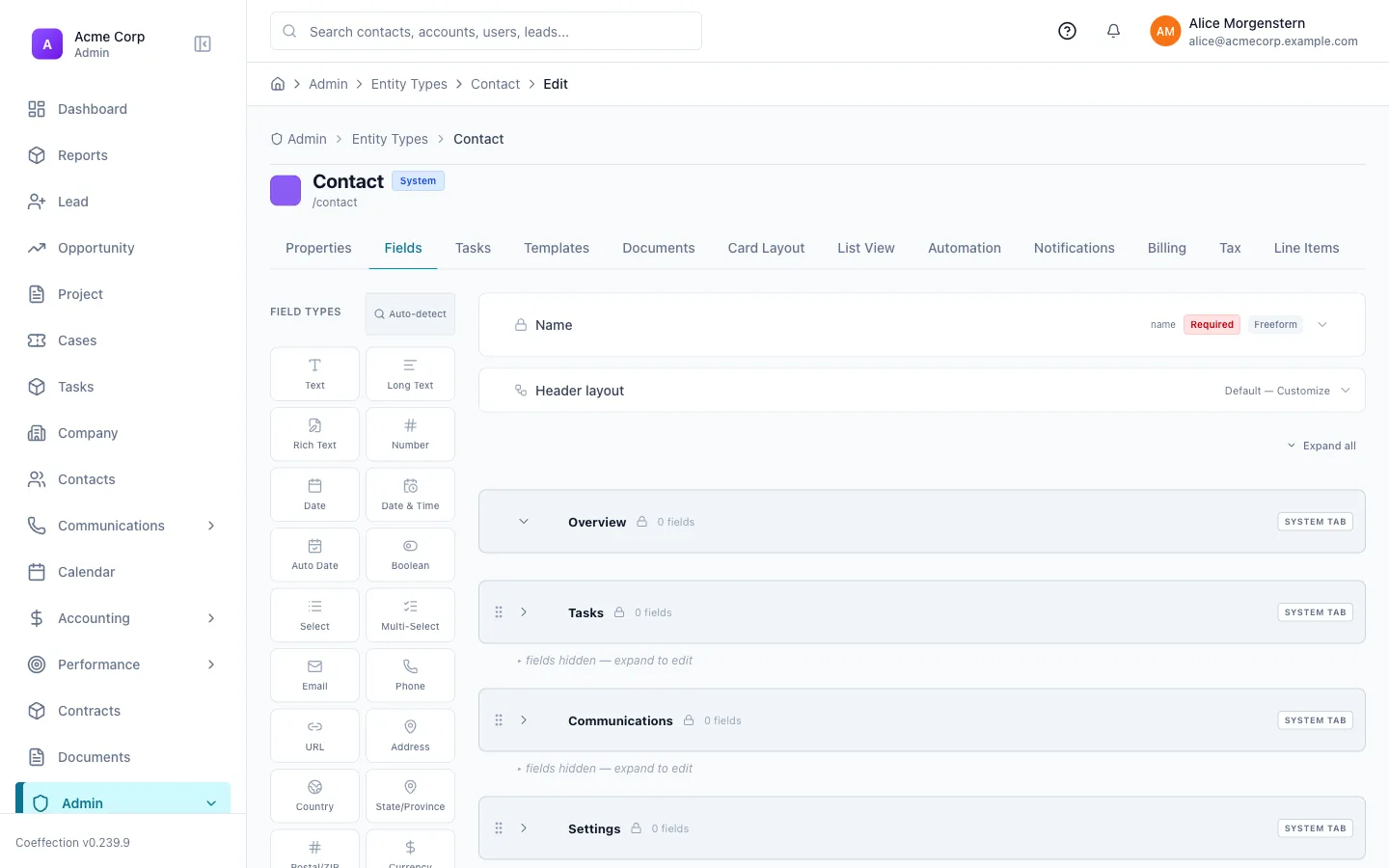
Add a Relationship field: pick the target type and single vs. multi
Choose Relationship as the field type, then set its Related Entity Type, the kind of record this field is allowed to link to (an existing entity type, or a system target like Team or User). Next, set its Cardinality:
One-to-One links to a single record. Good for something like a Contact's Company, where each contact really only belongs to one. One-to-Many links to multiple records at once. Good for something like a Case's Tasks, where one case can have any number of tasks attached to it.
A fuzzy-matching variant exists too
If you're linking records where the exact match isn't guaranteed (importing data where company names are typed slightly differently, for example), there's a Fuzzy Match Relationship field type that suggests likely matches instead of requiring an exact pick. It's configured the same way (related entity type, cardinality), but it softens the matching on the way in.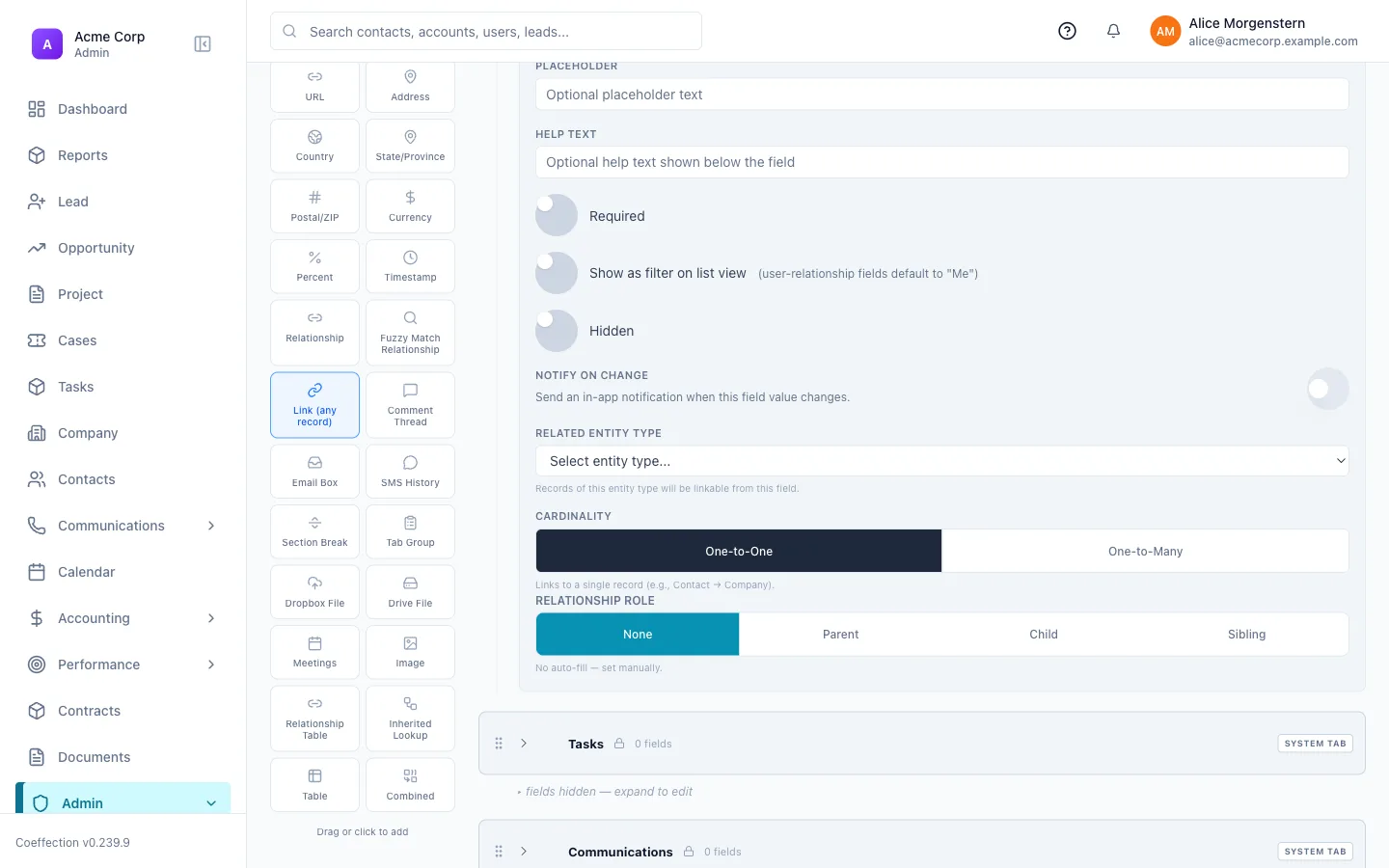
Link an actual record through the field
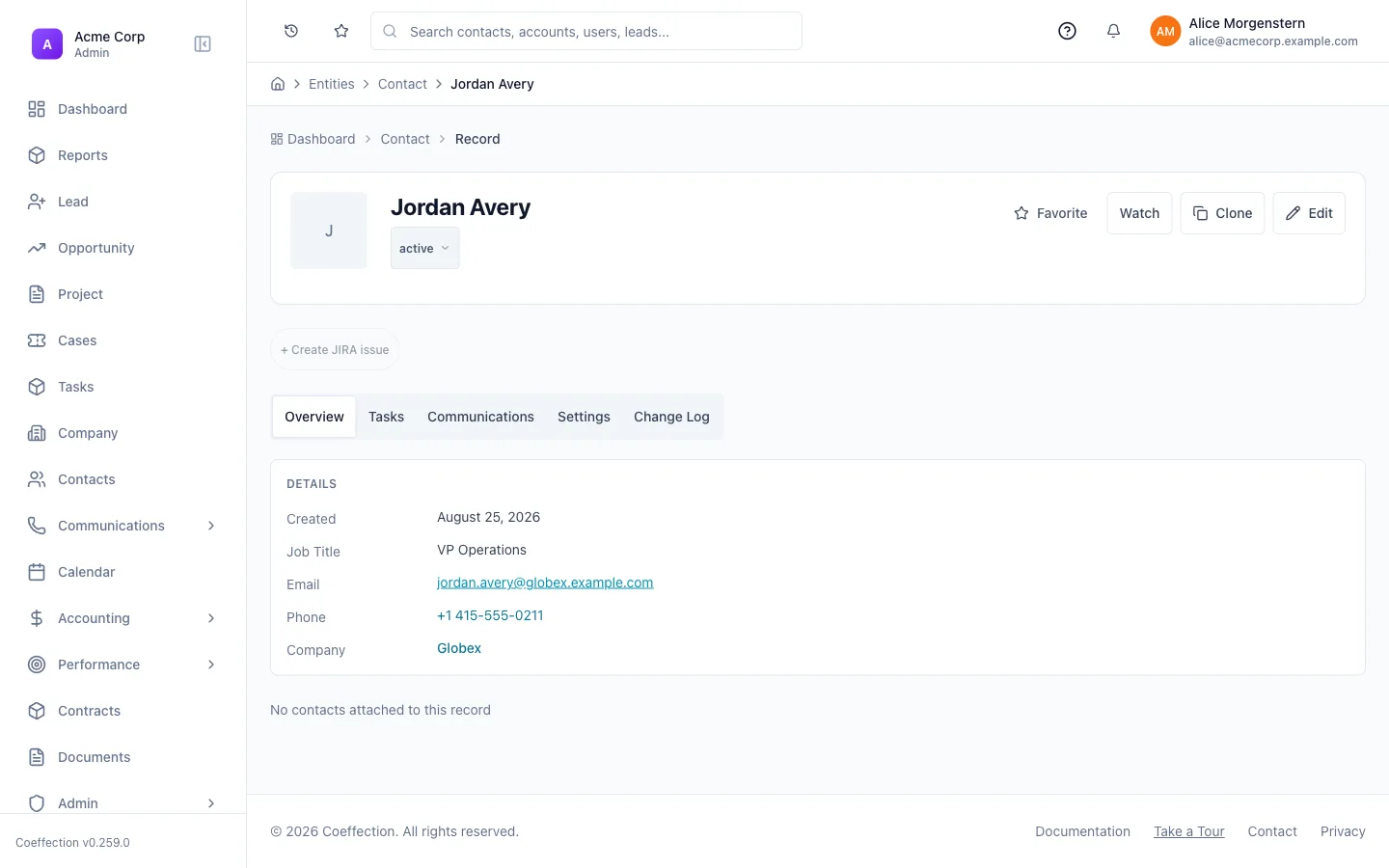
Open a record that has your new relationship field and set it: search for the record you want to link and select it from the results. On a one-to-one field that replaces whatever was linked before; on a one-to-many field it adds to the list, so you can attach several records over time. Save the record once you're done.
See the connection from both sides
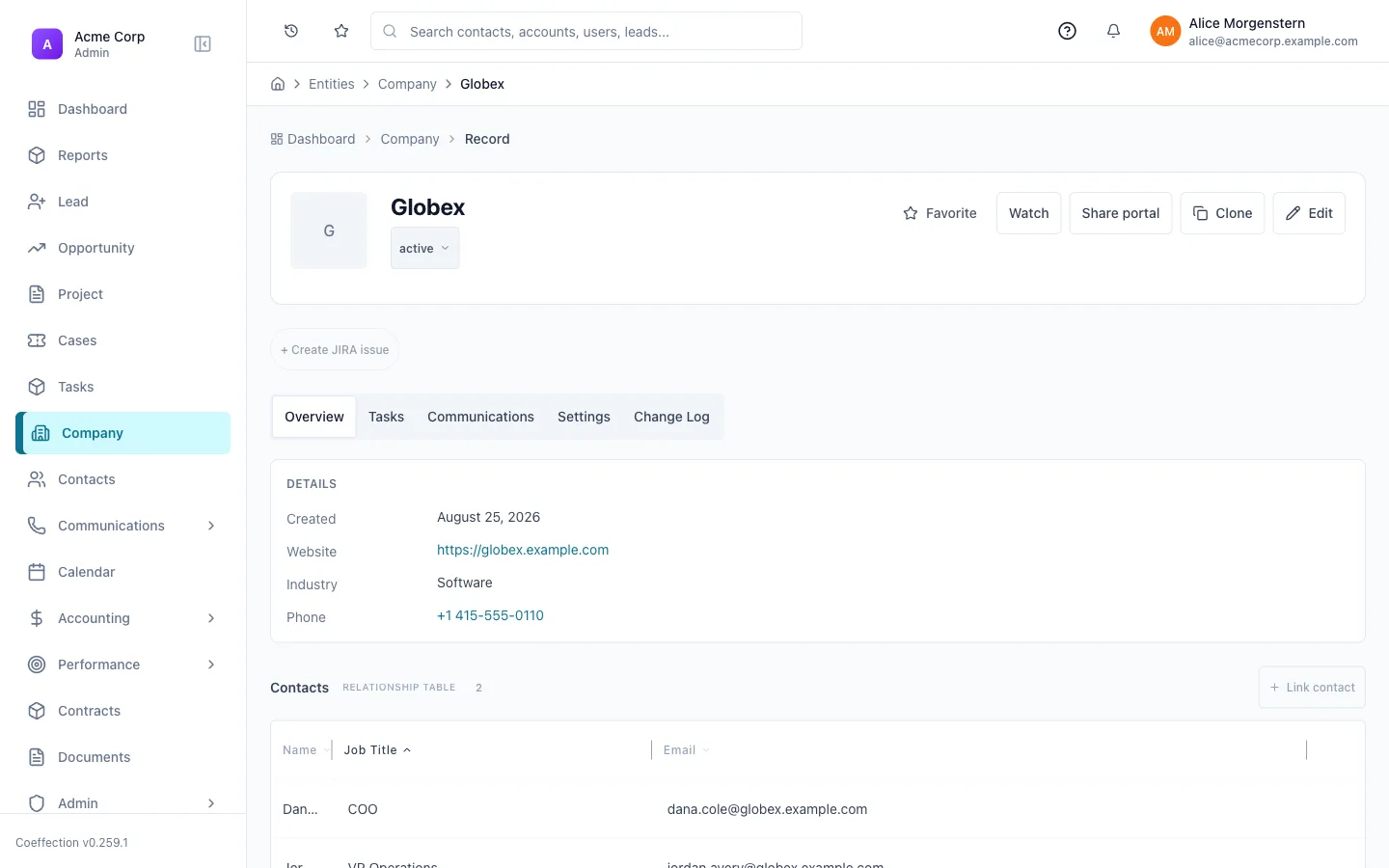
Once two records are linked, the relationship field shows the connection on the record you set it from, as a clickable reference to the linked record (or a list of references, for a one-to-many field). The other side benefits too: add a Relationship Table field to the related entity type, pointed back at the first one, and it will automatically list every record that links to it. No need to enter the connection twice.
That's the real payoff of a relationship field over a plain text field: the link is a single source of truth. Open the Company and see every linked Contact; open the Contact and see its Company. Both views come from the same one connection.
Choosing field types well, as your data model grows
A quick habit that pays off as an entity picks up more fields: ask whether a value is really data (a number, a date) or a reference to something else in your workspace. Amounts belong in currency fields. Dates belong in date fields. Fixed options belong in a dropdown. And anything that's really “another record” belongs in a relationship field, not a free-text name. Getting the type right up front is what makes reports total correctly. It also keeps filters working the way they should and linked records easy to navigate between.
🖼 Screenshot coming soon
With records linking cleanly to each other, the next thing worth setting up is what lives on each one. That's covered in the next guide, File Management.