
File Management
5 min read · Beginner · Core CRM
Contracts, floor plans, photos, spreadsheets: the paperwork around a deal is often as important as the deal record itself. Coeffection lets you attach files directly to the records they belong to, so anyone who opens a Contact, Account, Lead, or Opportunity finds the right documents sitting right there, instead of buried in someone's inbox. This guide walks through attaching a file, keeping your files organized, understanding who can see them, and storing files in Dropbox instead of inside Coeffection, if that's already where your team keeps things.
Attach a file to a record
Open any record and find its Files section. Drag a file onto the drop zone, or click it to open a file picker instead. The upload starts immediately, and a progress bar shows how it's going. Once it finishes, the file appears in the list right below.
You can also attach files inline while you type: dropping or pasting a file into a rich-text field (like a task's description) uploads it on the spot and inserts a chip you can click to open it later.
🖼 Screenshot coming soon
Keep files organized
Since the file's name in Coeffection comes straight from the file you uploaded, give it a clear, descriptive name before you upload it. “2026 Master Service Agreement.pdf” is a lot more useful six months from now than “scan001.pdf.”
Each uploaded file also gets a category tag you can change from a dropdown right in the file list, with options like Contract, SLA, or General. Tagging files consistently makes it much faster to scan a busy record and find the one document you're after.
No rename button? No problem.
There's currently no way to rename a file after it's uploaded. If you spot a bad filename, it's just as fast to delete the file and re-upload it with a better name.🖼 Screenshot coming soon
Understand who can see a file
Files don't have their own separate sharing settings. They inherit the same visibility as the record they're attached to. If a teammate can open the Opportunity, they can see and download every file on it; if they can't see the record (say, it belongs to someone else's book of business), the files stay out of view too. That means the same role-based rules that govern your records (a rep sees their own, a manager sees their team's, an admin sees everything) also govern the files on them.
🖼 Screenshot coming soon
Optional: connect Dropbox for storage
By default, files you upload live inside Coeffection's own storage. If your company already organizes documents in Dropbox, an admin can connect it instead from Admin → Integrations → Dropbox. It's a single company-wide connection. Individual users don't need Dropbox accounts of their own to use it.
Once connected, records can use a Dropbox-backed file field to upload a new file straight into your Dropbox folder structure, link an existing file that's already sitting in Dropbox, or link a whole folder so its contents stay visible from the record. Coeffection only stores a reference to the file. The file itself, and who's allowed to open it, stay governed by your Dropbox folder permissions.
Two access checks apply
For a Dropbox-backed file, a teammate needs both record access in Coeffection and folder access in Dropbox to open it. That's a deliberate safeguard. It means an admin can keep sensitive folders locked down in Dropbox even for people who can see the record.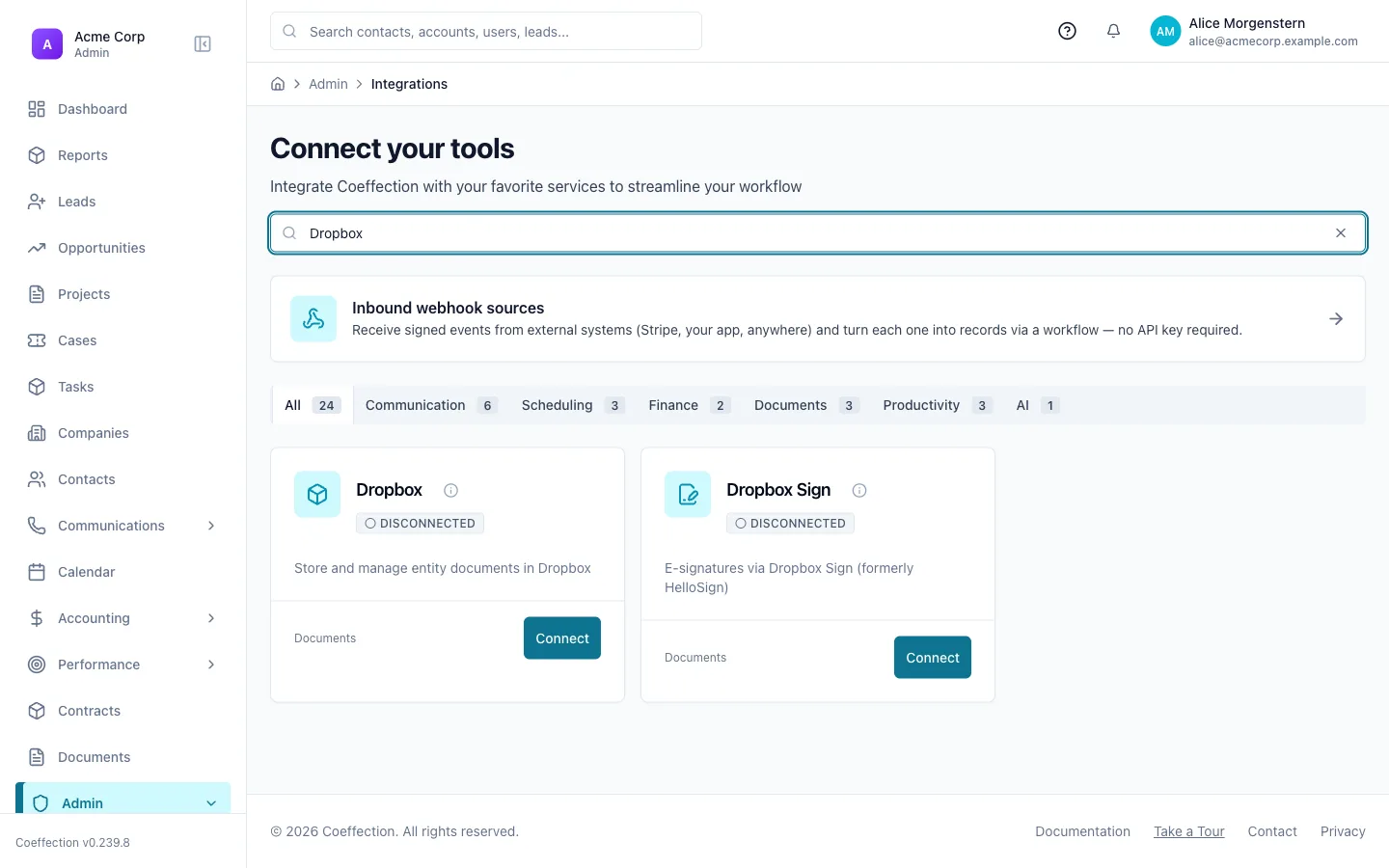
Find files again later
The fastest way back to a file is the record it's attached to. Its Files section lists everything uploaded there, newest first, with the file type, size, and category shown at a glance. Files someone dropped inline into a rich-text field show up here too, tagged with an Attached in label so you know exactly which field they came from. Nothing gets lost inside a comment or a description.
🖼 Screenshot coming soon
With your documents living on the record instead of scattered across email threads and shared drives, the next step is putting your data to work. That's covered in the next guide, Build Your First Report.