
Client Communication: Email, SMS & Meetings
8 min read · Beginner · Communication
Every conversation you have with a customer (an email, a text, a Zoom call) is easy to lose track of when it happens in five different apps. Coeffection keeps email, SMS, and meetings attached to the record they belong to, so the next person who opens that contact or opportunity sees the whole conversation, not just what landed in their own inbox. In this guide you'll connect your email, send a message, and see where that history shows up on the record.
Connect your email
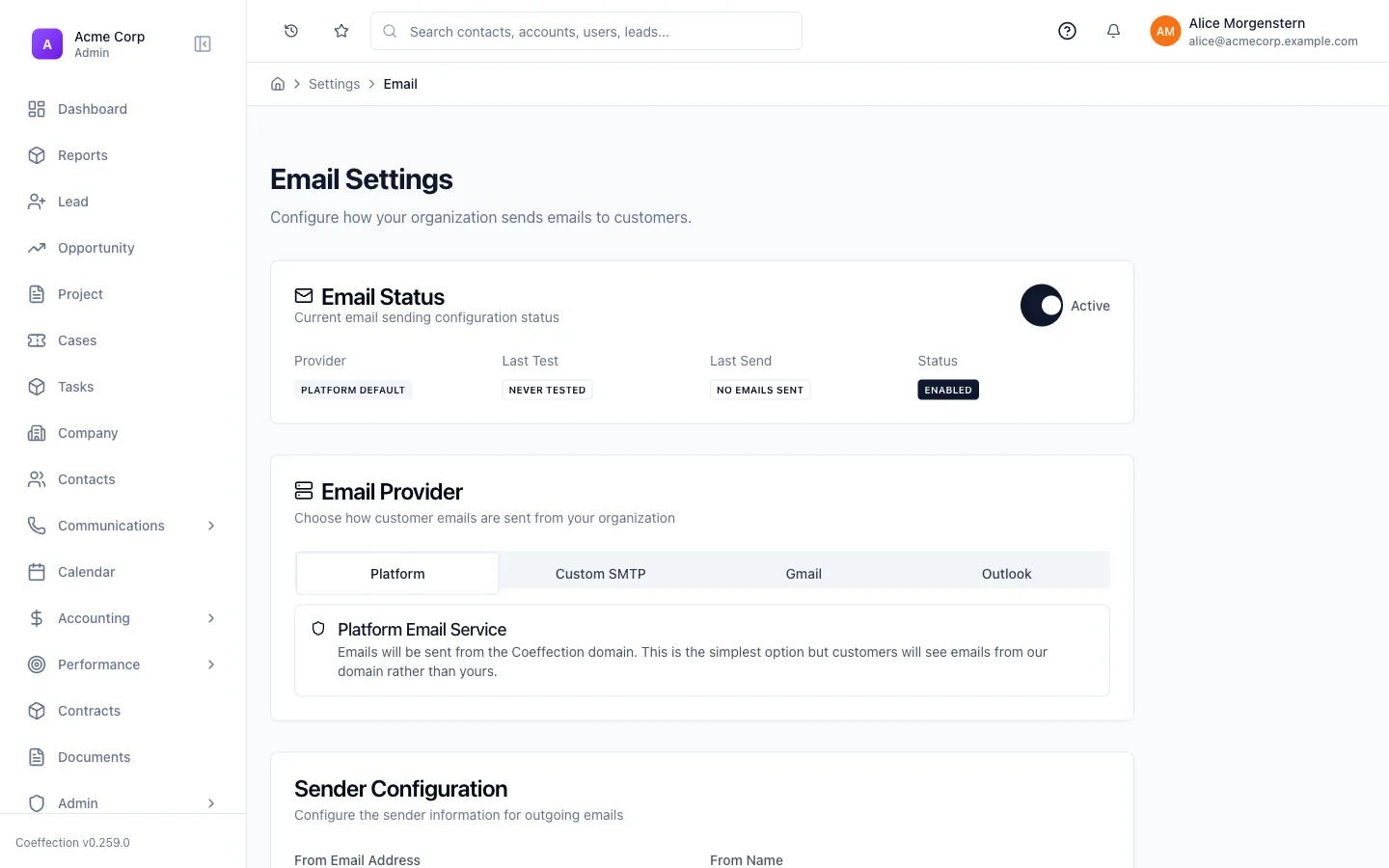
Open Settings → Email and choose how outgoing mail gets sent. The simplest option sends from Coeffection's own domain: no setup required. For mail that comes from your own address, connect Gmail or Outlook/Microsoft 365 via OAuth (or point at your own SMTP server). Once connected, Coeffection can send on your behalf and sync your inbox automatically, so replies show up without you doing anything extra.
Send an email from a contact or record
From a contact, lead, or other record, compose an email the same way you would in a normal mail client: subject, body, attachments. Coeffection sends it through whichever provider you connected in step 1 and links the message (and the thread it's part of) back to that record automatically, so it's there the next time anyone opens it.
🖼 Screenshot coming soon
Turn on SMS
Texting runs through your own Twilio account, so an admin needs to connect it once at Admin → Integrations → Twilio, adding account credentials and a sending number. Every tenant brings its own Twilio account, which is what lets texts go out from a number your customers already recognize as yours.
Ask your admin first
Compose-SMS only shows up on a record once Twilio is connected for your workspace. If you don't see it, that's the step to check. The next guide, Integrations & Webhooks, walks through connecting integrations like this one in more depth.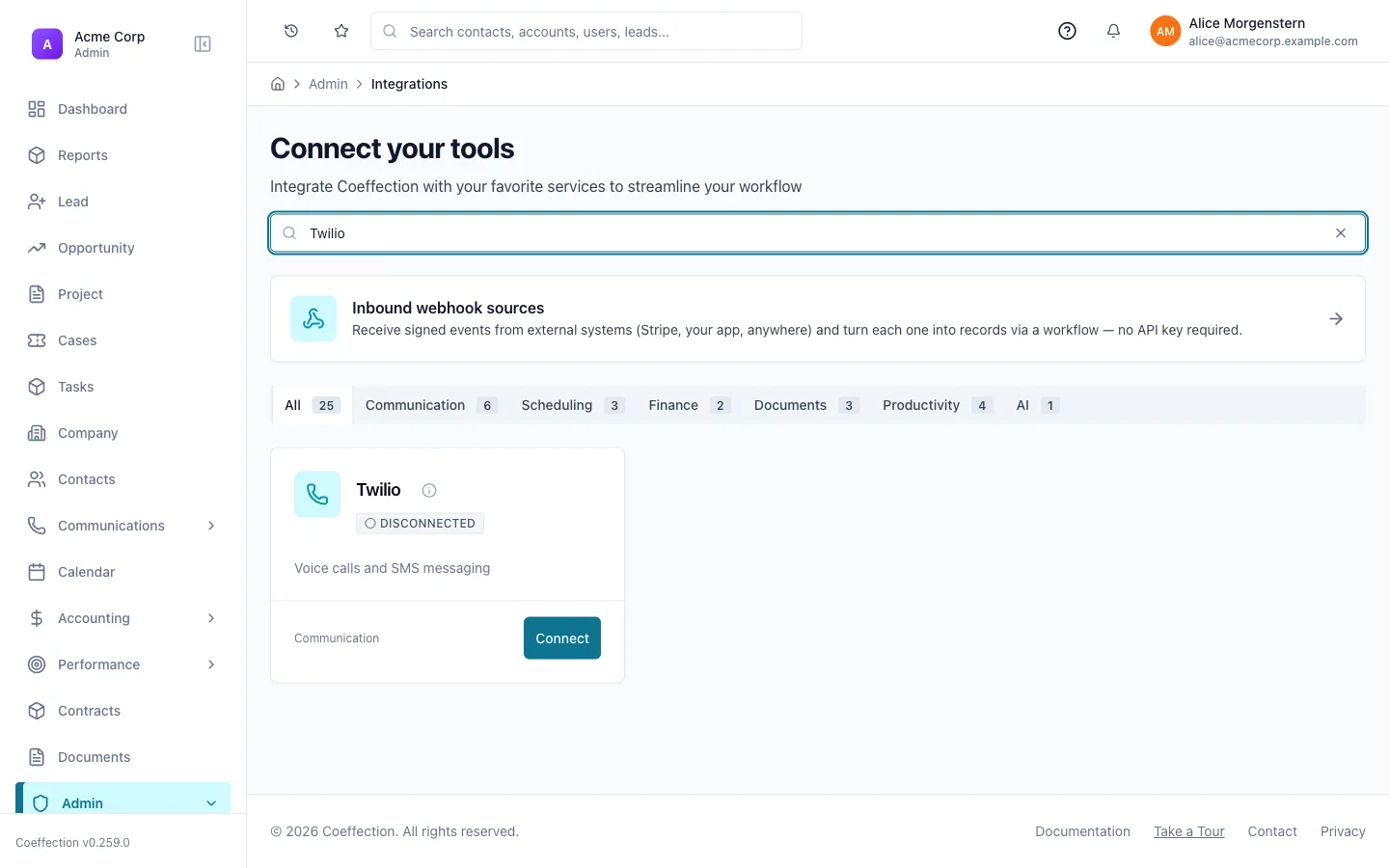
Text a contact from their record
Once SMS is connected, open a contact or lead and send a text the same way you'd send an email: pick the number, type the message, send. Replies come back into Coeffection and land on the same record, so a text thread reads top to bottom just like an email thread does.
🖼 Screenshot coming soon
Schedule and join a Zoom meeting
Meetings work the same way. An admin connects your organization's Zoom account (or you connect your own personal Zoom) so meetings can be scheduled and hosted from inside Coeffection. From Calendar → Meetings, schedule a new meeting, and Coeffection generates the Zoom invite and join link for you. When it's time, join straight from the meeting record.
Recordings and transcripts land automatically
After a Zoom meeting wraps, its recording and transcript attach to the meeting record on their own. You don't have to go find them in Zoom. That's also where a meeting summary shows up once one's available.🖼 Screenshot coming soon
See the whole conversation on the record
Open the record itself and you'll find every call, text, and linked email in one place: a running history of how that conversation has actually gone, not just what's in your own inbox. It's the same view whether you're picking up a deal someone else has been working or catching up after time away.
🖼 Screenshot coming soon
With email, SMS, and meetings all flowing into the record, the natural next step is connecting the other tools your team already uses. That's covered in the next guide, Integrations & Webhooks.
Next up
Leveraging Zoom: Calls, SMS & RecordingsAdd Zoom Phone, get an SMS number, and link calls, texts, and recordings to your records.