
Leveraging Zoom: Calls, SMS & Recordings
9 min read · Intermediate · Communication
Most teams already run their calls, texts, and video on Zoom. When you connect it to Coeffection, all three stop living in a separate app: you can call and text a customer straight from their record, and the call recording, the text thread, and the meeting notes attach themselves to the right contact, lead, or opportunity. This guide takes you from a plain Zoom account to a fully wired one: adding Zoom Phone, getting a number that can send texts, and linking the history back to your records so nothing gets lost.
Connect Zoom to Coeffection
An admin connects your organization's Zoom account once, at Admin → Integrations → Zoom. Click Connect, sign in to Zoom, and approve the permissions Coeffection asks for. That single connection covers meetings, phone calls, and SMS, so you only do it one time for the whole workspace.
Who should connect it
Connect the Zoom account that owns your company's Zoom Phone plan, usually an admin or account owner. Personal Zoom accounts can host meetings, but phone and SMS live on the paid Zoom Phone plan, which is an account-level thing.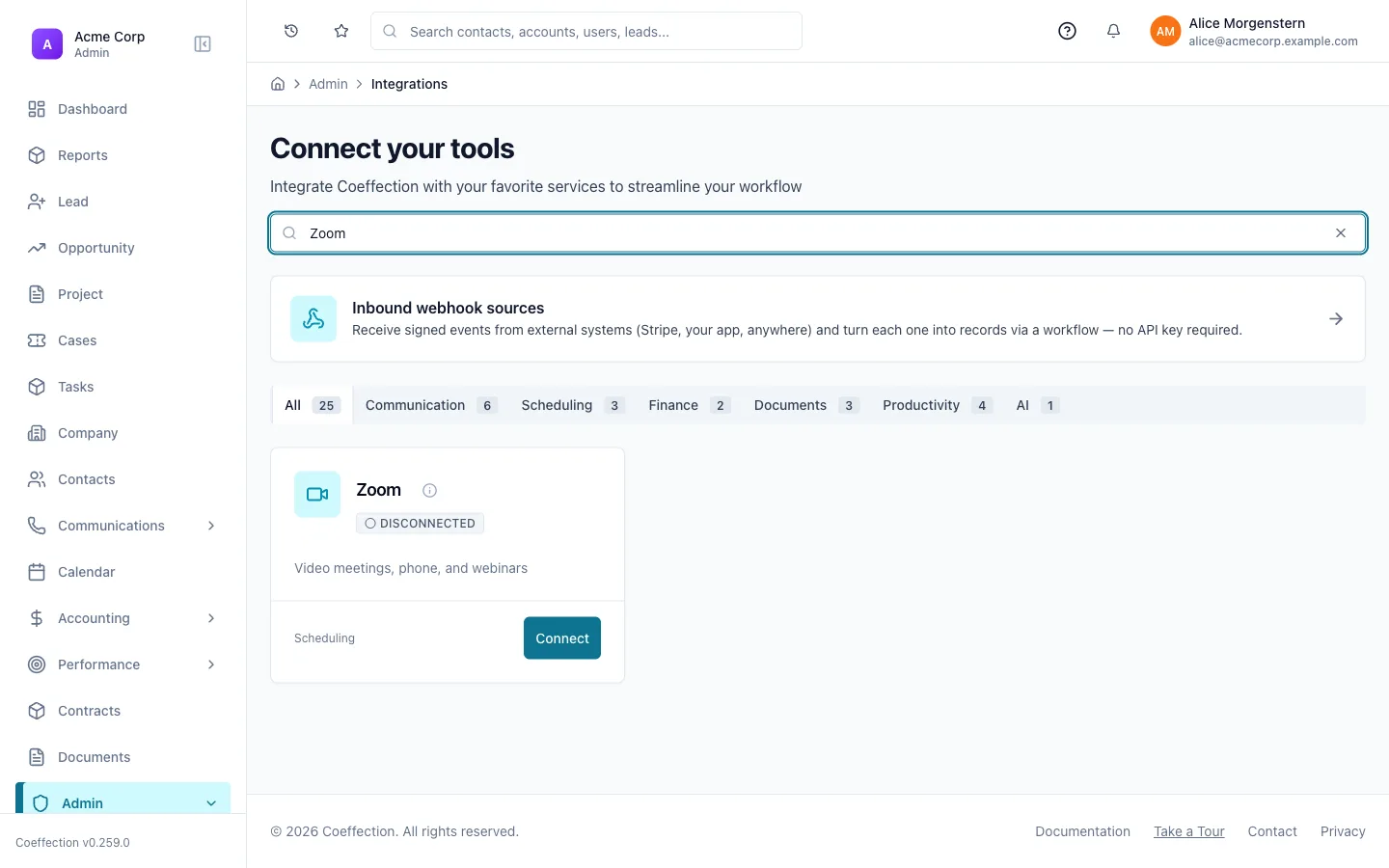
Add Zoom Phone to your Zoom account
Calling and texting both run on Zoom Phone, which is a separate add-on to your Zoom plan. In the Zoom Admin portal (not Coeffection), open Phone System Management, add a Zoom Phone license, and assign it to the users who'll be making calls. Then provision at least one phone number and assign it to a user or a shared line. Once a user has a license and a number in Zoom, they can place and receive calls from inside Coeffection.
Do the Zoom-side setup first
Coeffection can only surface what your Zoom account actually has. If a user has no Zoom Phone license, the call and text buttons stay hidden for them, which is the first thing to check when someone can't see them.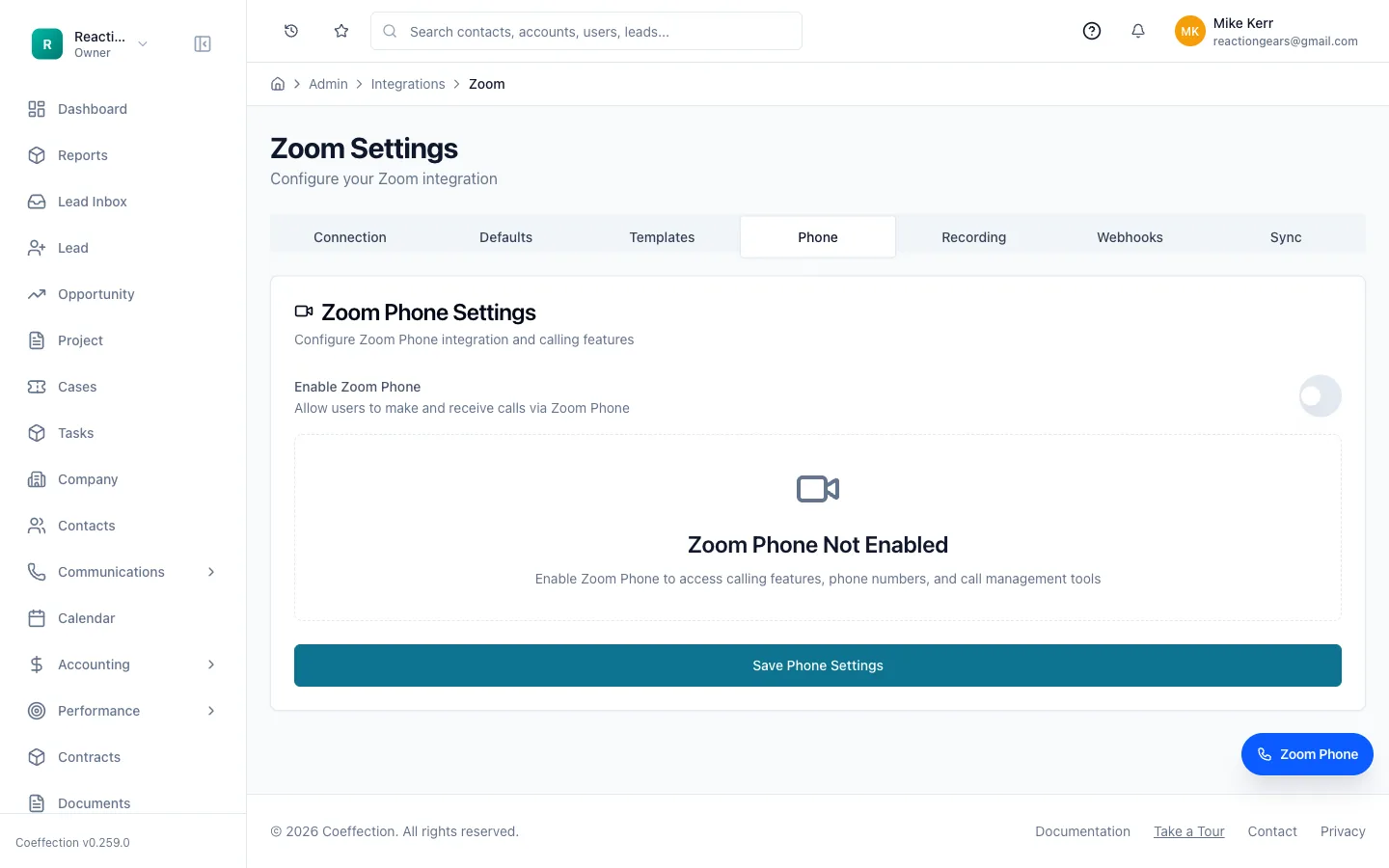
Get an SMS-capable number from Zoom
Not every Zoom Phone number can text out of the box. To send and receive SMS you need a number with SMS enabled. In the Zoom Admin portal, under Phone System Management → Phone Numbers, open the number you want to text from and turn on its SMS capability. In the United States, carriers also require you to register the number for business texting (this is the 10DLC brand-and-campaign registration Zoom walks you through). Registration is a one-time application; approval usually takes a few business days.
SMS won't send until the number is registered
If texts fail or nothing goes out, the number almost always still needs its SMS capability switched on in Zoom, or the 10DLC campaign hasn't been approved yet. Both live on the Zoom side, not in Coeffection. Once Zoom shows the number as SMS-enabled and registered, texting from a record just works.🖼 Screenshot coming soon
Call a customer from their record
Open any contact, lead, or opportunity and use the Callaction. Coeffection places the call through your Zoom Phone number, and when you hang up it logs a call activity on that record automatically: who called whom, when, and how long it lasted. You don't have to remember to write it down, and the next person who opens the record sees the call in the history.
🖼 Screenshot coming soon
Text a lead and link the thread to their record
With an SMS-enabled number connected, open a record and use Send SMS. Type your message and send. Replies come back into Coeffection and land on the same record, so a text thread reads top to bottom like an email thread. If a text comes in from a number that isn't matched to anyone yet, you can link the thread to a lead (or any record) from the message itself, so the whole back-and-forth is attached to the right person going forward.
One number, many conversations
Because every text is tied to the record it belongs to, your team shares one texting number without stepping on each other. Whoever opens a lead sees that lead's texts, not the whole company's inbox.🖼 Screenshot coming soon
Find recordings, meeting notes, and the full history
Call and meeting recordings attach to the record on their own once Zoom finishes processing them, so you can replay a conversation without digging around in Zoom. For video, schedule and host Zoom meetings from Calendar → Meetings; after a meeting wraps, its recording, transcript, and summary come back and attach to the meeting record. Open any contact or opportunity and you'll see every call, text, and meeting in one running history.
Linking a past meeting
A meeting that already happened outside a record can be linked to the right contact or opportunity from Communications → Meetings (filter to Past). Recordings follow whatever Zoom account settings allow, so if a recording isn't showing up, confirm cloud recording is turned on for that user in Zoom.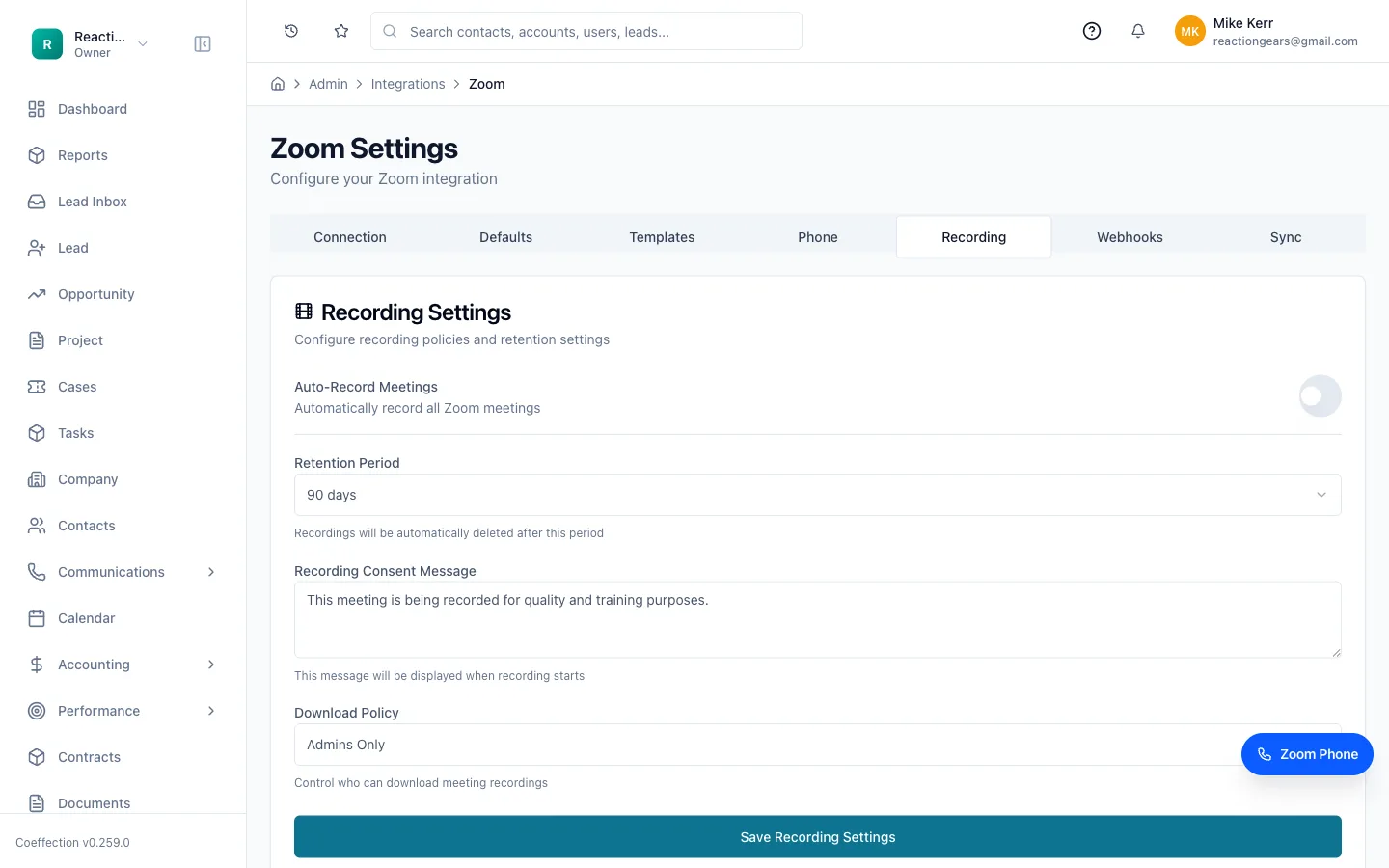
With Zoom wired in, calls, texts, meetings, and their recordings all collect on the records they belong to. To pull in the rest of the tools your team uses and react to outside events automatically, head to the next guide, Integrations & Webhooks.