
Pipeline Promotions
6 min read · Intermediate · Core CRM
Some records outgrow their pipeline. A won Opportunity needs to become a Project. A qualified Lead needs to become a Deal. Instead of copying fields by hand into a brand-new record, promotion lets a record in one pipeline spin up a linked record in a different pipeline, carrying over the fields you choose. The original stays right where it is, with a trail back to what it became. This guide sets up a promotion rule and walks a record through it.
What a promotion rule actually does
A promotion rule lives on a single stage of a pipeline. It says: when a record reaches this stage, offer to create a new record of a different entity type, and link the two together. It isn't limited to one pair of entities: any entity type in your workspace can be configured to promote to any other, so the same mechanism covers an Opportunity becoming a Project just as well as a Lead becoming a Deal, or a custom entity you've built promoting into another one.
The two records stay connected after promotion. The original isn't deleted or overwritten. It keeps a pointer to the record it became, and the new record keeps a pointer back to where it came from.
🖼 Screenshot coming soon
Open the stage's Promotion Rule panel
Go to Admin → Pipelines and open the pipeline that contains the stage you want to promote from. Click that stage on the pipeline canvas to open its edit panel, then find the Promotion Rule section. (You won't see it on task pipelines. Promotion is a sales-pipeline concept, and it doesn't apply to task workflows.)
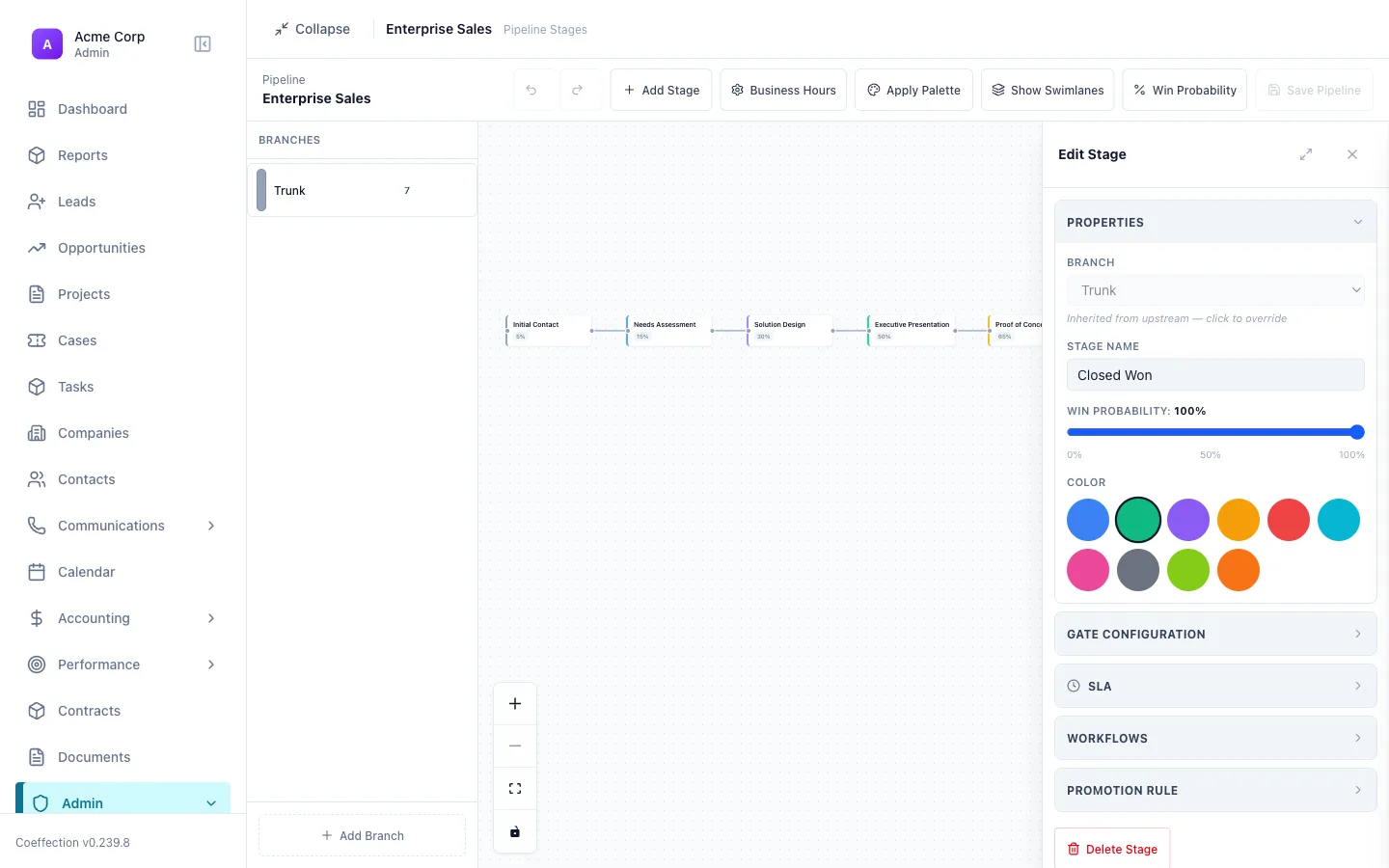
Choose what it promotes to, where it lands, and which fields travel
Click Add Promotion Rule and set:
Promote to picks the entity type the new record should be created as. Landing Stage sets which stage of that entity's pipeline the new record starts in (it defaults to the first stage, but you can point it anywhere). Then open Configure Mapping to choose which fields on the source record should copy onto the new one, matching a Deal Amount field to a Project Budget field, for example.
Only mapped fields carry over
Whatever you map in Configure Mapping is what copies. Everything else on the new record starts blank, and you fill it in normally. The account, contact, and owner on the source record come along automatically, so you don't need to map those yourself.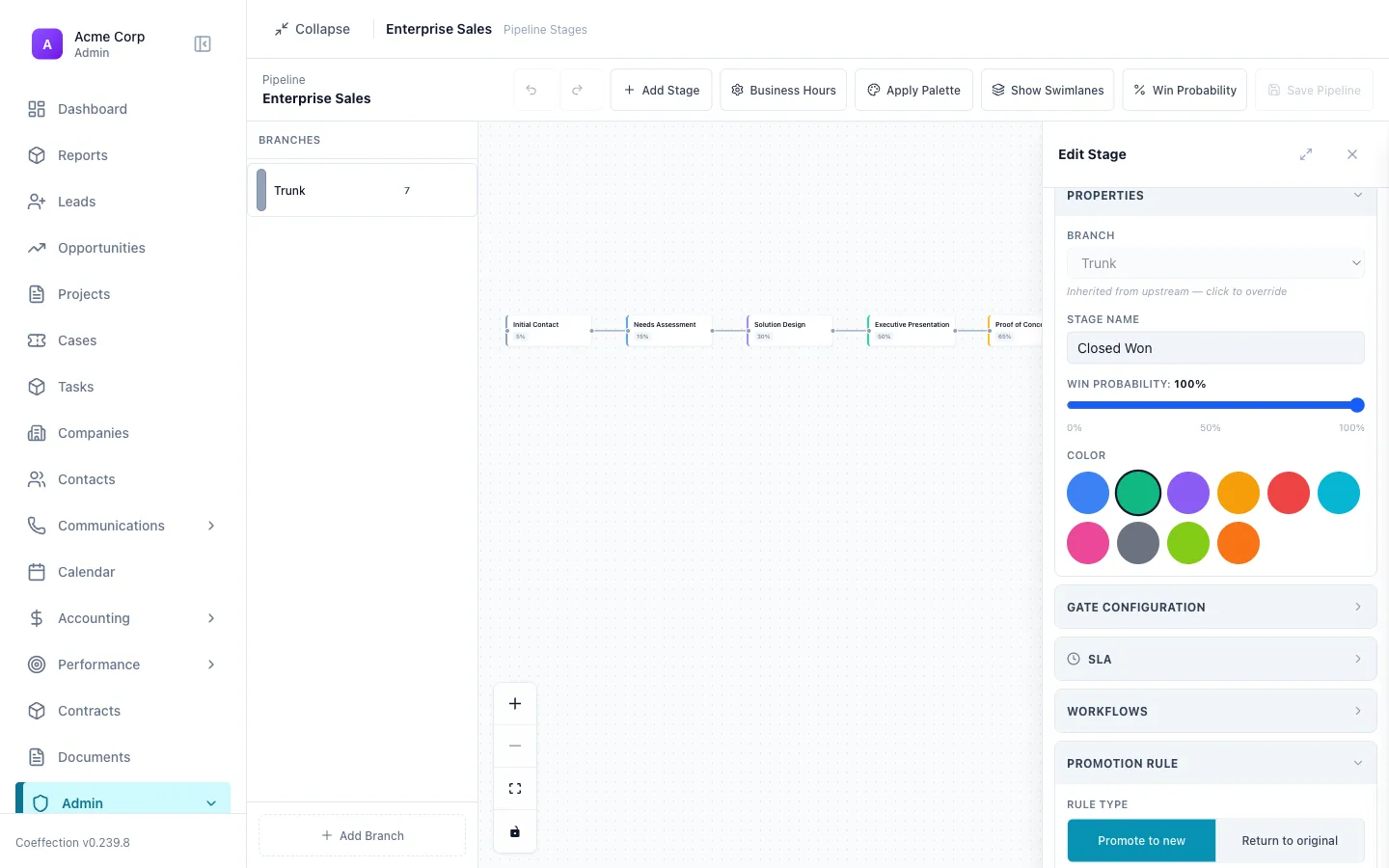
Decide whether it needs a confirmation, or fires on its own
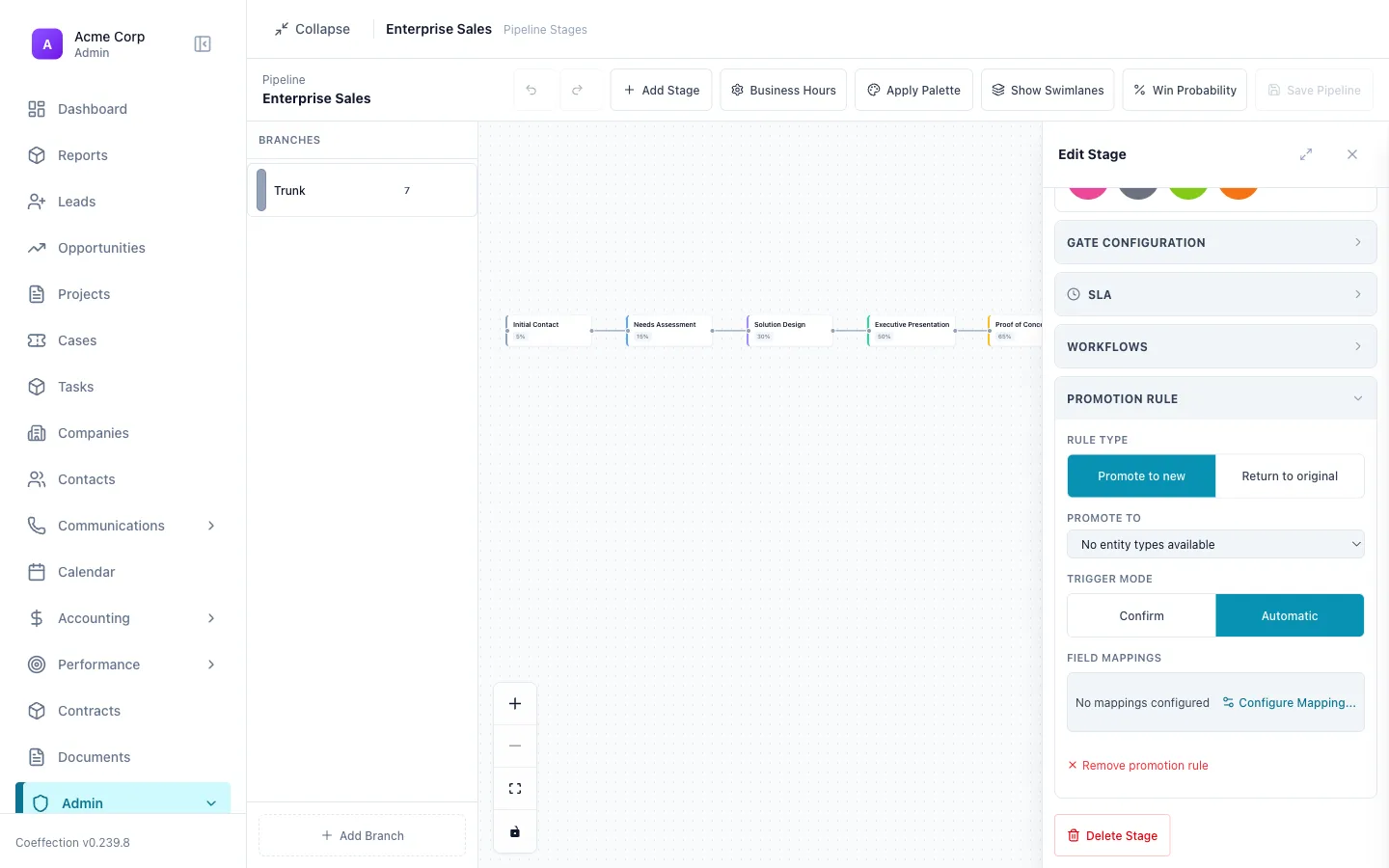
Set the rule's Trigger Mode. Confirm (the default) pauses and shows a review dialog before anything is created, so whoever moves the record can double-check what's about to copy. Automatic skips that dialog entirely: the moment a record lands in this stage, the new record gets created right away. Confirm is the safer starting point; switch to Automatic once you trust the mapping and want one less click in the way.
Promote a record
With the rule saved, move a record into that stage: drag its card into the column on the kanban board, or change its stage directly from the record's detail page. If the rule is set to Confirm, a dialog opens showing the fields about to copy, with each one checked off individually so you can uncheck anything you'd rather leave out this time. Review the list and click Promote to create the new record. If the rule is Automatic, there's nothing to click. The new record already exists by the time the stage change finishes saving.
🖼 Screenshot coming soon
Find the link on both records
Open the original record and you'll see a banner noting it was promoted, with a link straight to the new record. Open the new record and it shows the reverse: a banner noting where it was promoted from, with a button to reverse the promotion if it was done in error. The original record isn't archived or moved by promoting it. It just stops showing up on that stage's kanban column by default, since its job there is done. Toggle the eye icon in that column's header any time to reveal the promoted-away cards again, badge and all.
Promotion doesn't touch the original's status
Promoting a record links it to a new one, but its own status and stage stay exactly as they were. It's only hidden from view, not changed. If a promotion happens by mistake, open the new record and use Revert to undo it: the new record is removed, and the original reappears on its board.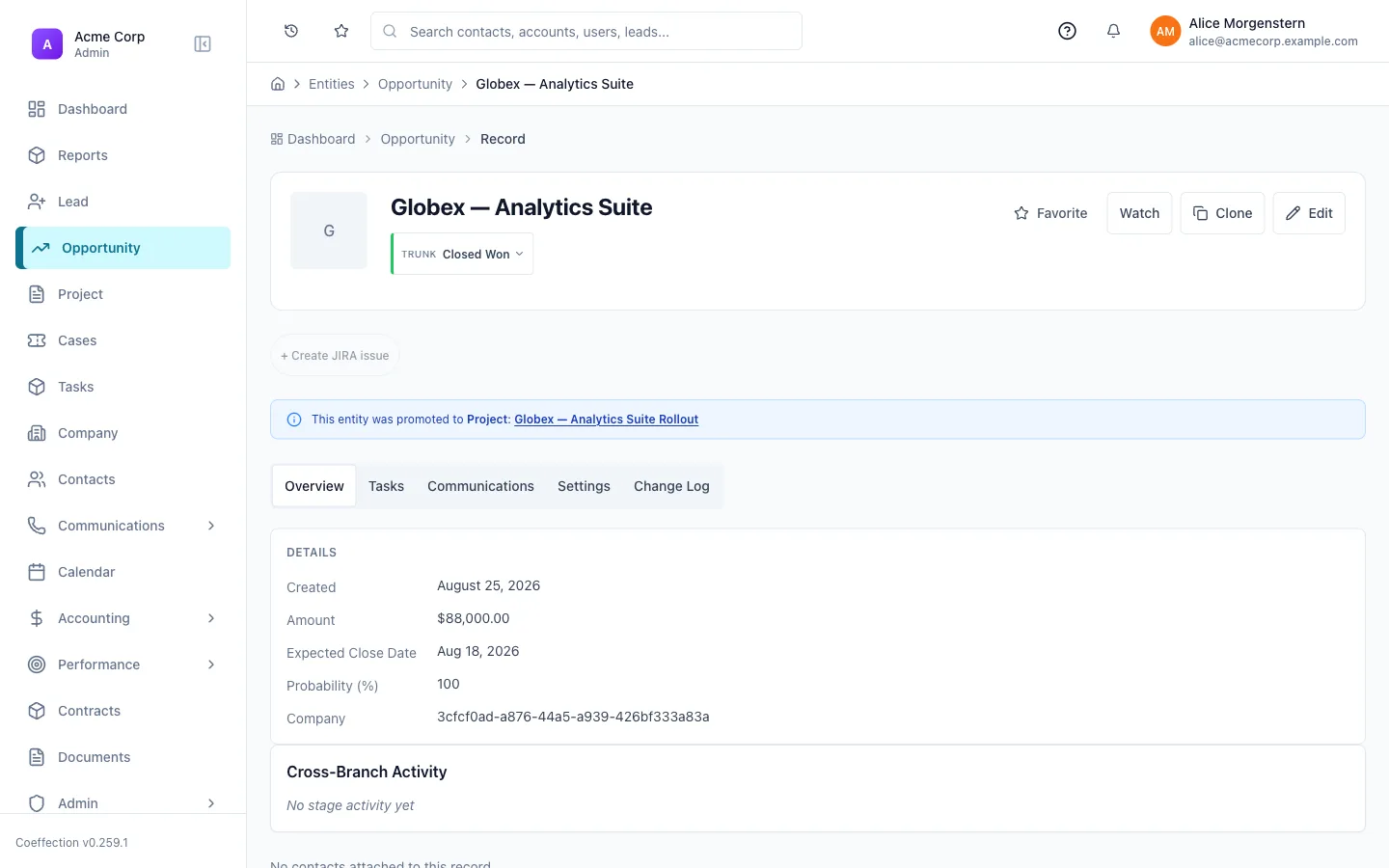
With records handing off cleanly between pipelines, the next thing worth setting up is how those records reference each other directly. That's covered in the next guide, Relationships with Different Fields.
Next up
Relationships with Different FieldsLink records together and choose the right field type for each connection.