
Entities & Pipelines
8 min read · Beginner · Core CRM
An entity is the type of record you track in Coeffection. Contacts and Opportunities are built-in entities, but you can define your own (Deals, Projects, or whatever your business runs on). A pipelineis the set of stages a record moves through on its way to done. In this guide you'll build both from scratch: a simple “Deals” entity with a pipeline that takes a deal from New to Won.
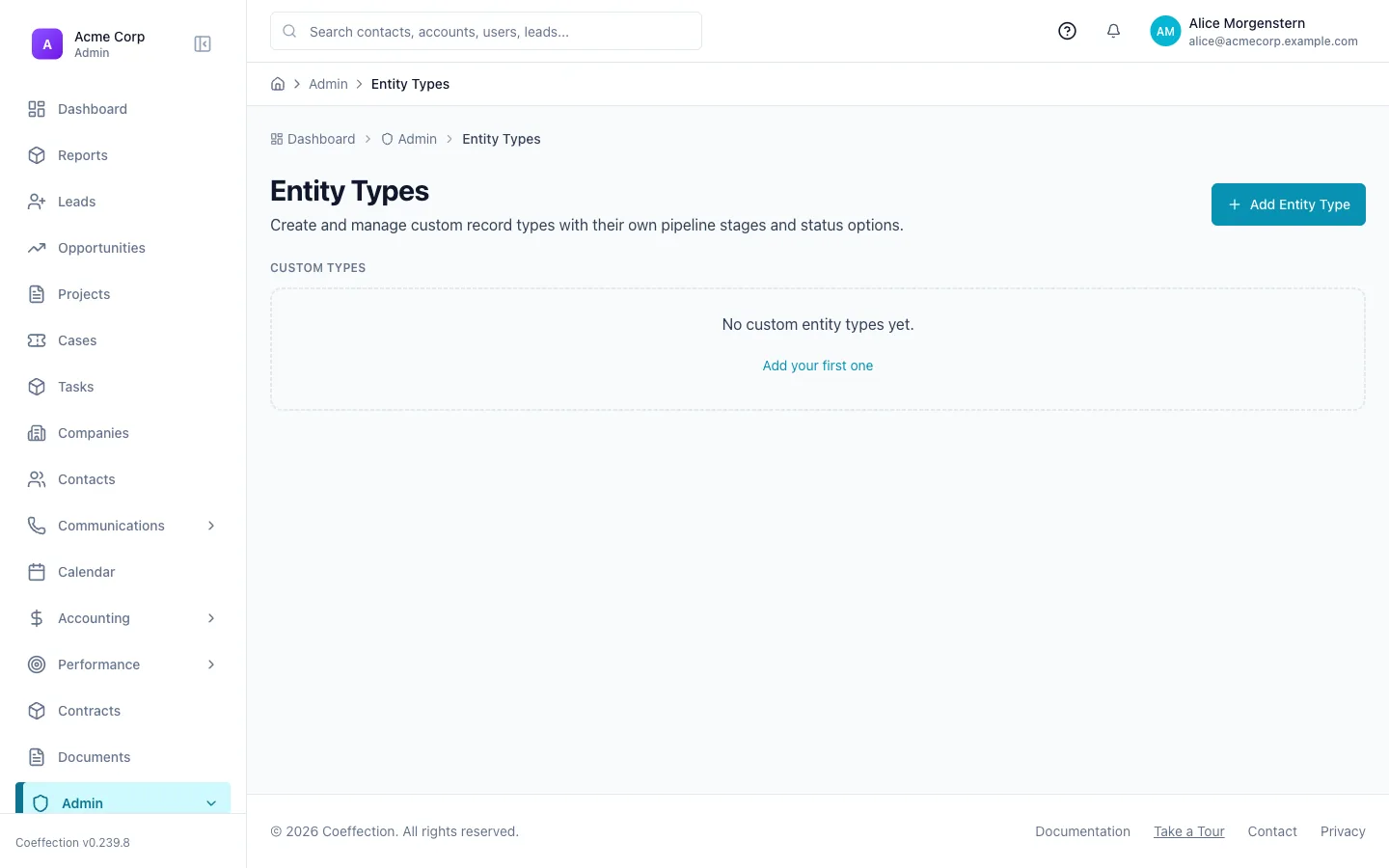
Open Admin → Entity Types
Head to the admin area and open Entity Types. This is the master list of every kind of record your workspace can hold: the built-in ones like Contacts and Opportunities, plus any custom entities your team has added.
Create a new entity ("Deals") and add a few fields
Click New entity type and name it Deals. Once it's created, add a handful of fields to capture what matters for a deal: a text field for Deal Name and a currency field for Amount. Toss in a date field for Close Date too, so you can track when it's expected to close. You can always add more fields later, so don't worry about getting the list perfect on the first pass.
Match the field type to the data
Pick the field type that fits the data: currency for money, date for dates. If it's a fixed set of options, use a dropdown instead of free text. Reports and filters key off the field type, so a plain-text money amount won't total correctly on a dashboard.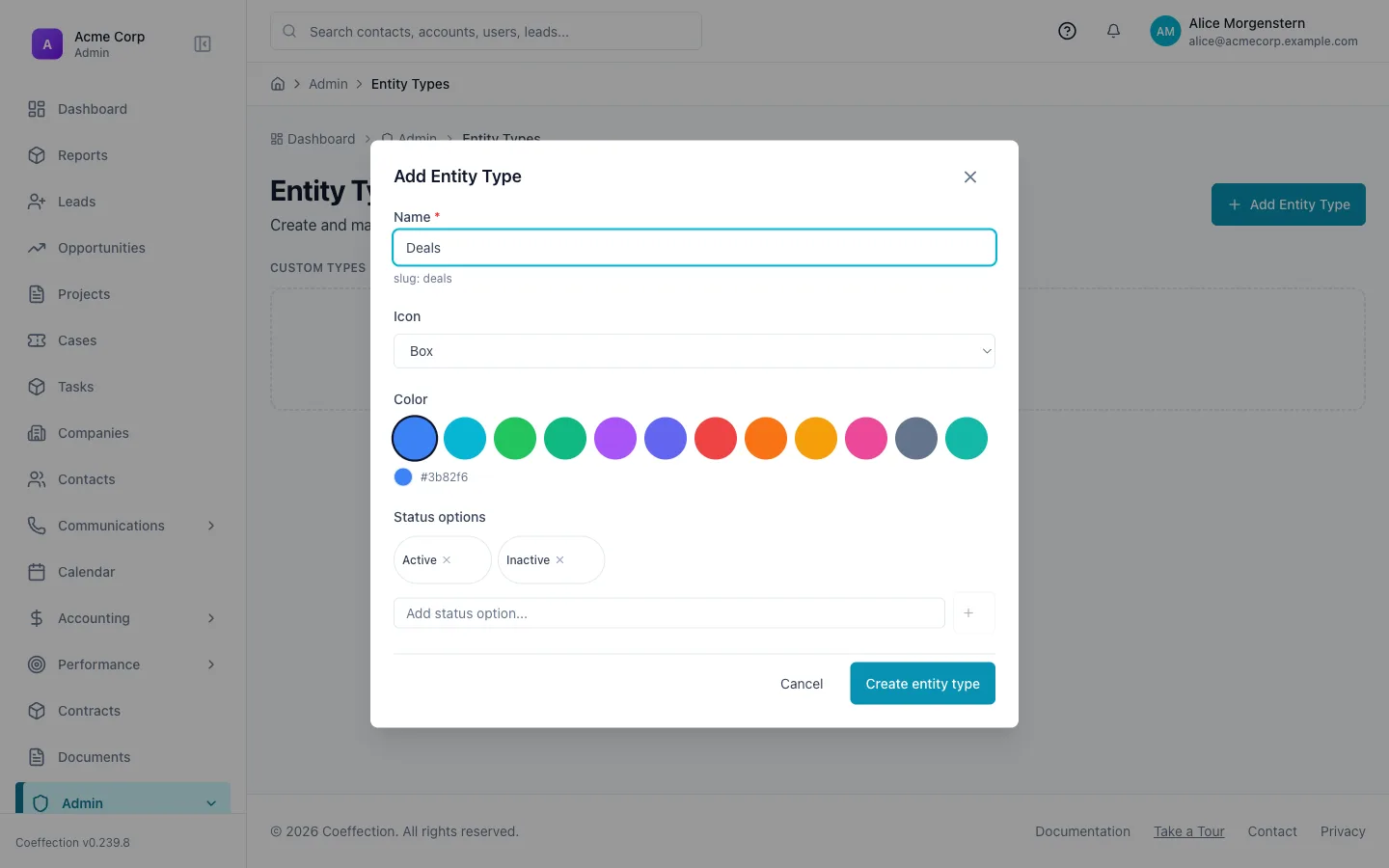
Open the Pipelines admin
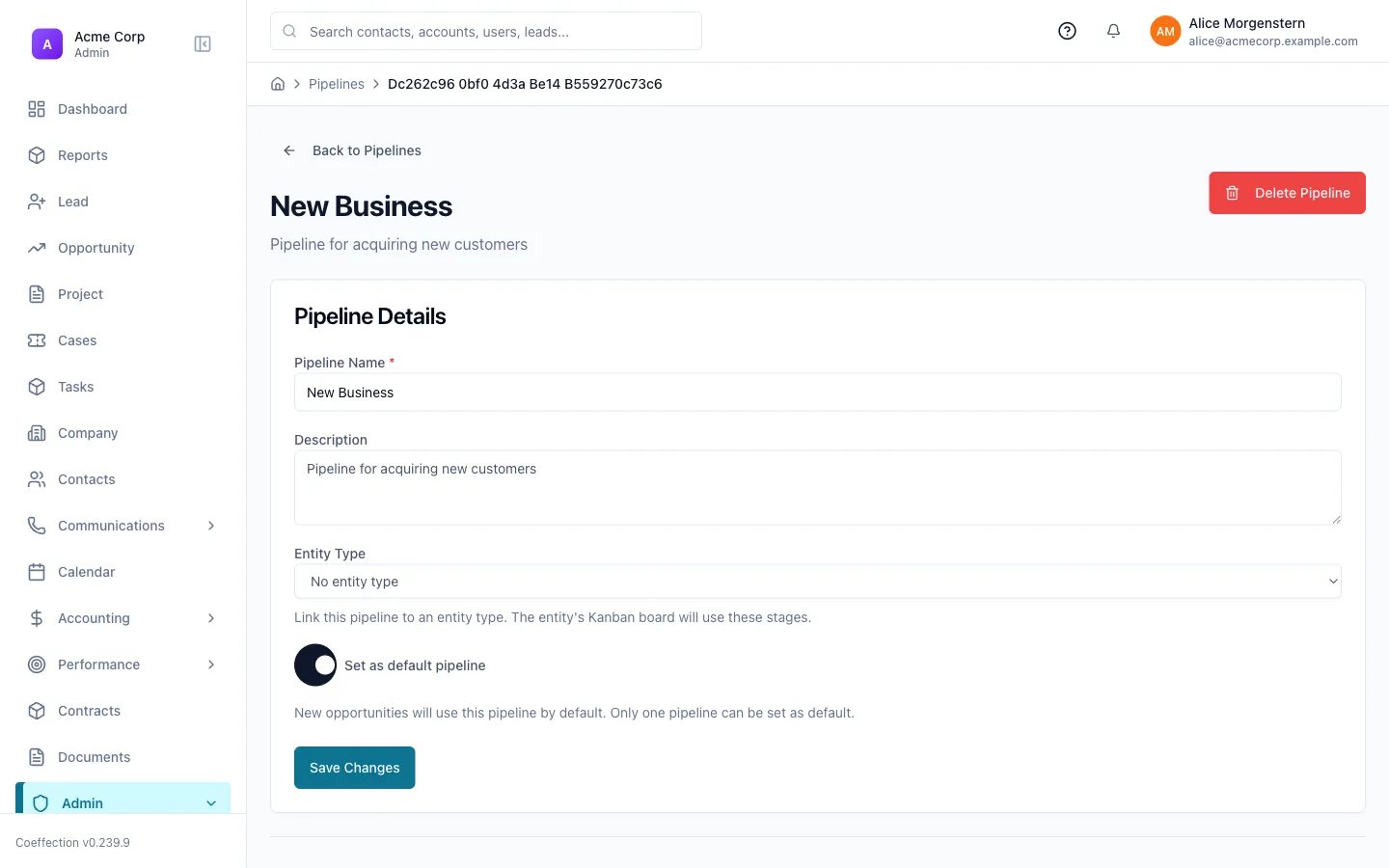
Next, go to Admin → Pipelines. Pipelines are managed separately from entities, because the same entity can sometimes support more than one pipeline (different sales motions for different product lines, for example).
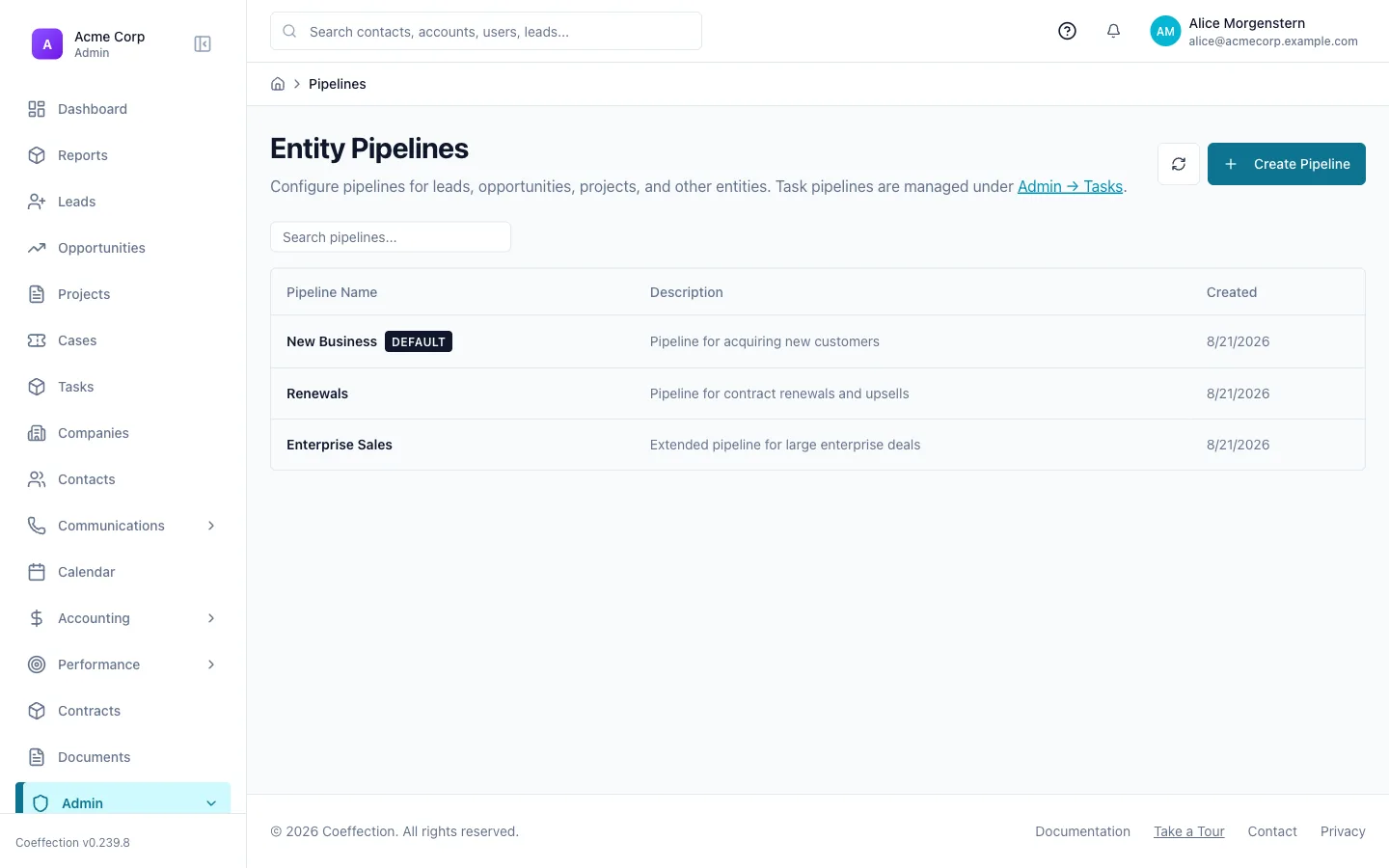
Create a pipeline and add stages
Click New pipeline, give it a name like Deals Pipeline, and start adding stages. A simple starting point is New → Qualified → Proposal Sent → Won (with a Loststage off to the side for deals that don't close).
Stage order is the column order
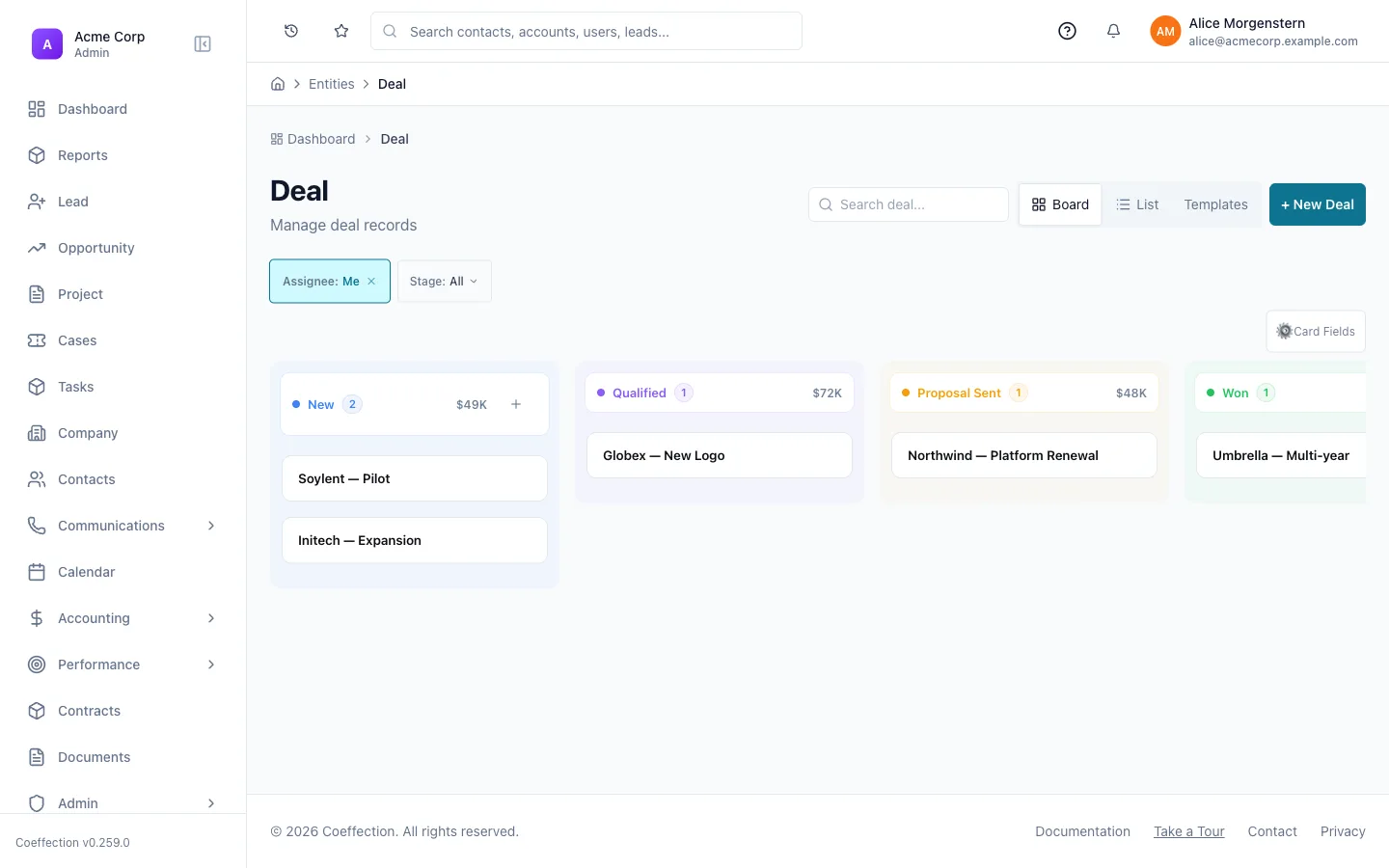
The order you add stages in is the order they'll appear as columns on the kanban board, and it's what drives each stage's default win probability. Drag stages to reorder them any time. Nothing here is permanent.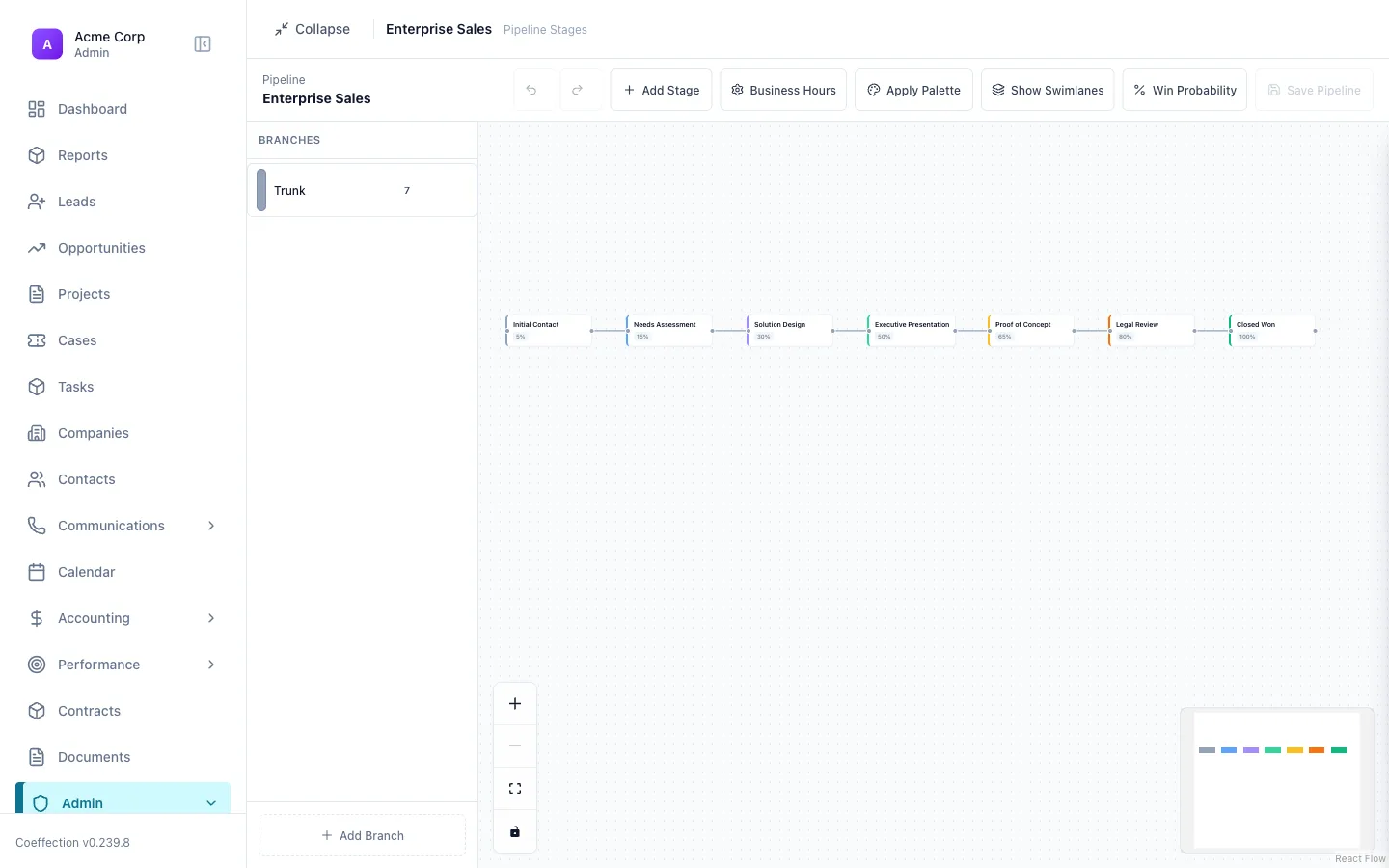
Attach the pipeline to the entity
Back on the Deals entity's settings, set Deals Pipeline as its pipeline. This is what tells Coeffection that every Deal record should carry a stage and show up on the kanban board for that pipeline.
Create your first record and watch it move through stages
Create a new Deal record, fill in the fields you added back in step 2, and save it. It'll land in the first stage of your pipeline automatically. From there, open the kanban board and drag the card into the next stage, or open the record and change its stage field directly. Either way, the move is logged, so you can always see when a deal changed stage and who moved it.
Once records are moving cleanly through your stages, the natural next step is learning how to hand a record off between pipelines. That's covered in the next guide, Pipeline Promotions.